

Last Updated: 24 November 2026
Quick Summary
Yes, open banking is safe for personal budgeting apps when you use a regulated provider. Your bank authenticates you directly, the app receives read-only access, and you can revoke consent at any time. Your bank handles the login and shares only the account data you approve.
- Open banking apps hold a secure token tied to your consent, never your bank password.
- Read-only access lets apps see balances and transactions but cannot initiate payments or move funds.
- UK open banking consents are time-limited and must be renewed with your active approval.
- Revoking at your bank is the most reliable route because the bank controls the token.
- Check the provider is authorised or registered with the FCA using the official public register.
Is Open Banking Safe for Personal Budgeting Apps?
Yes, open banking is safe for personal budgeting apps when you use a regulated provider. Your bank authenticates you directly, the app receives read-only access, and you can revoke consent at any time.
Your bank handles the login and shares only the account data you approve.
This guide covers how the connection works, what data an app can see, how to check and revoke access, and what to do if something goes wrong.
How Open Banking Connects Your Bank Account to a Budgeting App
Open banking is a regulated system that lets you share your own bank account data with a third-party provider through a secure API. You approve the connection at your bank, and the app receives data through that channel.
Here is the sequence in practice:
- You choose your bank inside the budgeting app.
- The app redirects you to your bank's own login page or app.
- You authenticate with your bank, using your normal login and two-factor authentication.
- Your bank asks which accounts and what data you consent to share.
- The bank sends you back to the app with a secure token, not your password.
- The app pulls balances and transactions through the API until the consent expires.
Step five matters most: the app holds a token tied to your consent, not your credentials, covering specific accounts and permissions.
Open Banking Security: Encryption, Authentication and Read-Only Access
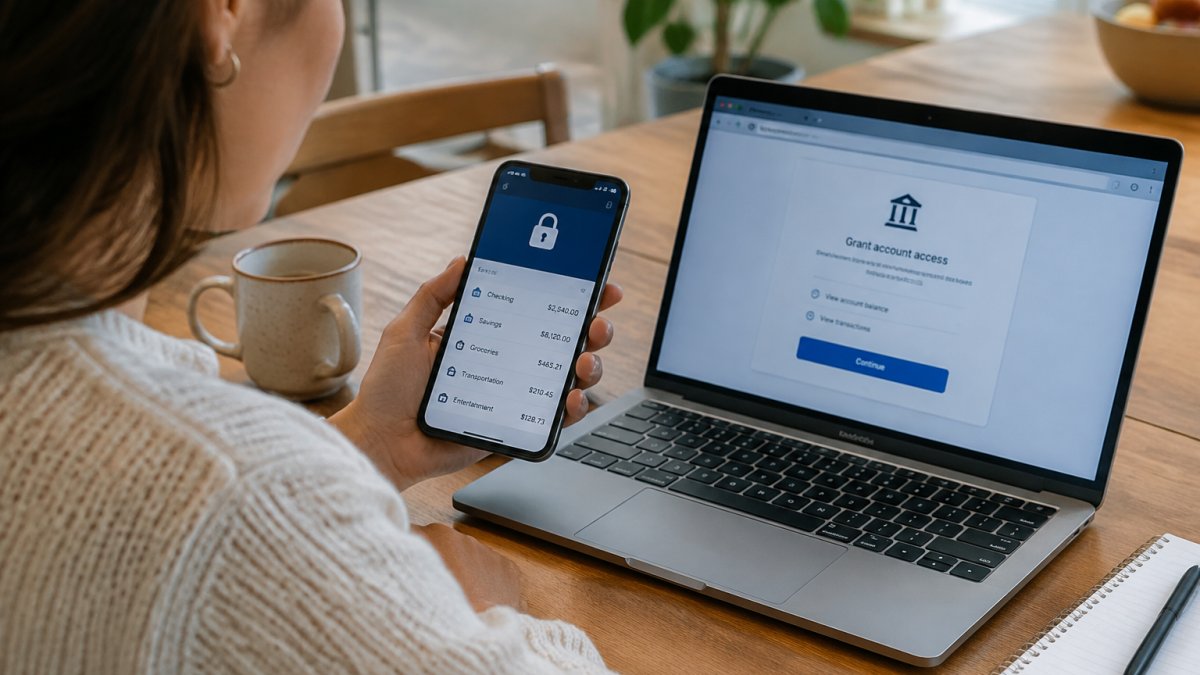
Security in open banking rests on three layers: encryption of the data, strong authentication at your bank, and read-only permissions that block payments.
How Encryption Protects Your Data in Transit and at Rest
Encryption in transit scrambles data moving between your bank and the app, so an intercepted message is unreadable. Encryption at rest protects the copy the app stores on its servers.
- A secure connection uses modern transport encryption between the bank and the provider.
- A reputable provider encrypts stored transaction data and limits internal access to it.
Ask any app how long it keeps your transaction history and whether it encrypts stored data. A vague answer is a warning sign.
Why Read-Only Access Means Apps Cannot Move Your Money
Read-only access means the app can see your balances and transactions but cannot initiate payments or move funds.
For a budgeting app, you want spending history and balances, not payment initiation. If an app asks for payment permissions to run a budget, question why.
Open Banking Data Privacy: What Apps Can See and Share
A budgeting app can typically see the account names, balances, and transaction history for the accounts you select. It should not see your bank login details, and it cannot see accounts you did not approve. In the UK, open banking access is governed by rules overseen by the Financial Conduct Authority (FCA); check the official FCA and Open Banking sources for current technical standards.
What the app can and cannot access
Under a standard account-information consent, a budgeting app can typically read the account details, balances and transaction history for the accounts you select. What is exposed depends on what each bank makes available through its API.
It cannot read your login credentials, your card PIN, or accounts you did not tick during consent. It also cannot initiate payments unless you separately grant payment-initiation permission, which a budgeting app has no reason to request.
Consent duration and renewal
UK open banking consents are time-limited, so access expires and must be renewed with your active approval. Check the consent period your bank and provider state before you connect.
That renewal is a safety feature: it forces a periodic check that you still want the connection. Watch out: if an app claims it can keep syncing indefinitely after a single login, ask how it handles reauthentication.
Data retention and deletion after you disconnect
Revoking consent stops new data pulls, but it does not automatically erase what the app already stored. What happens next depends on the provider's privacy policy and its UK GDPR obligations.
Ask these questions before you connect:
- Retention period: how long does the app keep transaction history after you disconnect, 30 days, 12 months, or indefinitely?
- Deletion route: can you request full deletion, and is there a named contact or in-app control for it?
- Onward sharing: does the app pass data to third parties (analytics providers, credit reference agencies, affiliate partners), and is that sharing opt-in or baked into the terms?
Under data protection law you can usually request erasure of your data, but this right is not absolute, a provider may retain records for a legal or regulatory reason.
Onward sharing and the privacy policy test
A privacy policy that names third-party categories (for example, "cloud hosting providers in the EEA" or "analytics processors") is a better sign than one that says only "trusted partners". If the policy is silent on retention and deletion, treat that as a transparency gap.
Open Banking Versus Screen Scraping: Why the Difference Matters
Open banking and screen scraping both pull bank data into an app, but screen scraping asks you to hand over your bank login details so a third party can log in as you.
That single difference drives most of the risk. With screen scraping:
- Your login details sit with a third party.
- The provider logs in as you, often with broad account access.
Open banking removes the credential handover entirely. Your bank authenticates you, and the provider never sees your password. If an app asks for your bank password directly, that is screen scraping, whatever the marketing says.
How to Revoke Open Banking Access and Disconnect an Account
You can revoke open banking access from your bank, from the app, or through the provider's consent dashboard. Revoking at the bank is the most reliable route because the bank controls the token.
Use this checklist:
- Open your banking app and find the section for connected apps or data sharing.
- Review the list of third-party providers with active consent.
- Check which accounts and permissions each one holds.
Disconnecting inside the app is convenient but depends on the app honouring it. Revoking at the bank stops the data flow at source. Do both when closing an account with a provider.
| Action | Where to do it | What it stops | How quickly |
|---|---|---|---|
| Revoke consent | Banking app or online banking | New data pulls at the token level | Usually immediate |
| Disconnect in app | Budgeting app settings | The app's own sync | Varies by provider |
| Request deletion | Provider's privacy contact | Stored historical data | Depends on policy |
| Close the account | Provider's account settings | All future access | On closure |
Choosing a Budgeting App That Handles Your Bank Data Responsibly
A responsible budgeting app will tell you plainly how it connects, what it stores, and how to leave. Judge it on those answers, not security page adjectives.
Before you connect: provider and permission checks
- Is the provider authorised? Check that the provider is authorised or registered with the relevant regulator, such as the FCA in the UK, using the official public register. If the app cannot tell you who its regulated provider is, stop there.
- Which connection method does it use? A regulated open banking provider redirects you to your bank's own login. If the app asks for your bank username, password, or memorable information inside its own screens, that is screen scraping, whatever the marketing says.
- What permissions does it request? Account information only, or payment initiation as well? A budgeting app needs read-only access. Payment permission is a red flag unless you specifically want a payment feature.
At setup: device and account hygiene
- Use your bank's own two-factor authentication during the consent flow, do not disable it to speed things up.
- Install the app from the official App Store or Google Play listing, not a link in an email or social post.
- Use a device passcode or biometric lock, and keep the operating system updated.
Watch out: a budgeting app that asks you to turn off two-factor authentication, or to approve a login from an unrecognised device, is asking you to weaken the exact control that protects you.
After you connect: monitoring and review
- Check your bank's "connected apps" or "data sharing" screen within the first week to confirm only the provider you expect has access.
- Review active consents every few months, and revoke anything you no longer use.
- Watch for unexpected reauthentication prompts, they are normal at the 90-day mark, but a prompt you did not initiate deserves a call to your bank.
What to do if something goes wrong
If you spot unfamiliar transactions or suspect unauthorised access:
- Contact your bank immediately using the number on the back of your card or in the official app, not a number from an email.
- Ask the bank to revoke the third-party consent for the app in question.
- Change your banking credentials and any reused passwords.
- Report the concern to the app provider in writing, and keep the correspondence.
- If the provider is unresponsive or you believe it has breached data protection rules, you can raise it with the Information Commissioner's Office (ICO). For conduct issues with a regulated firm, check the official guidance on complaint routes, which may include the Financial Ombudsman Service.
A key point: read-only open banking access cannot initiate payments, so the risk after a breach is exposure of transaction data, not direct withdrawal. That distinction should shape how urgently you act and what you ask your bank to do.
For a deeper look at the security model behind read-only connections, see our guide to read-only open banking security. If you would rather skip a budgeting app entirely and pull your own bank feed into a spreadsheet, our walkthrough on connecting a bank feed to Google Sheets covers that setup.
Connect Your First Account with Zenith Bank Sync
Zenith connects bank accounts through your bank's own consent flow, so your login details stay with your bank. You choose the accounts, and Zenith keeps balances and transactions up to date through a read-only connection.
The setup suits anyone who wants live bank data without building integrations:
- Authenticate through your bank's consent screen and pick the accounts to sync.
- Pull balances and transactions into Google Sheets, a REST API, CSV, or an AI assistant via MCP.
- Coverage spans European banks across the EU, the UK and the wider EEA.
If you bank with Lloyds, you can connect your Lloyds account directly. Halifax customers can set up a Halifax bank sync, and Bank of Scotland customers can link a Bank of Scotland account the same way.
Judging whether a budgeting app is safe comes down to evidence: a regulated provider, a bank-led consent flow, read-only permissions, and a clear route to revoke access.