


Yes, you can add a QR code to any invoice today, and the first decision is simple: do you want customers to scan and pay, or do you need the QR to carry machine-readable invoice data for accounting systems? That single choice determines your tool, your setup time, and your compliance path.
Three fast routes to get started:
- Invoice platform built-in: Enable the QR feature inside your invoicing software (QuickBooks, Square, or Autobooks) and the code generates automatically per invoice.
- Free QR generator + embed: Create a payment-link QR at a free generator or at Zenith-books’s free QR tool, download the PNG, and drop it into your invoice template.
- API-based dynamic QR: Call a payment processor’s API (PayPal’s generate-qr-code endpoint, for example) to produce a per-invoice QR tied directly to that invoice’s payment flow.
Key Takeaways
Adding a dynamic invoice QR code to every invoice you send is the fastest single change a small business can make to reduce days sales outstanding and eliminate manual payment reconciliation.
| Point | Details |
|---|---|
| Choose QR type first | Dynamic payment QR beats static for any business sending more than a handful of invoices monthly. |
| Redirect to processor-hosted pages | Never encode card data in the QR; always link to a TLS-protected processor page to minimize PCI scope. |
| Include invoice ID in every QR | Embed the invoice ID in the redirect URL so payments auto-match in your accounting system. |
| Test before full rollout | Scan from print and screen on both iPhone and Android before sending to customers. |
| Zenith-books automates the full chain | Auto-generates, embeds, files, and reconciles QR-linked invoices without manual steps. |
Table of Contents
- How do invoice QR codes actually work?
- Which QR type fits your situation?
- Why adding a QR code to invoices pays off
- How to generate a QR code for an invoice: three methods
- How to add the QR image to a PDF or invoice template
- Which US providers support invoice QR payments?
- Security, PCI, and compliance: what US businesses need to know
- Testing, rollout checklist, and reconciliation tips
- Common problems and fixes with invoice QR codes
- How automation simplifies invoice QR code workflows
- When are invoice QR codes actually worth the effort?
- Zenith-books automates the entire invoice QR workflow
- Sources
How do invoice QR codes actually work?
An invoice QR code does one of two things: it encodes a URL that redirects the scanner to a payment page (scan-to-pay), or it encodes a structured data payload containing invoice fields like amount, tax ID, and line items for machine ingestion (data-rich e-invoice). Most US small businesses need the first model. The second is more common in B2B and government e-invoicing contexts, where an ERP or accounting system reads the QR rather than a human.
The scan-to-pay flow looks like this: customer scans QR with their phone camera → phone decodes the URL → browser opens the processor’s hosted payment page → customer enters payment details → processor confirms and notifies the merchant. The merchant never touches card data. PayPal’s documentation explains this redirect model clearly: customers land on a secure payment page hosted by the processor, which is the key reason this approach reduces PCI scope for merchants.
The data-rich e-invoice flow is different. The QR encodes a structured payload (often XML or JSON, sometimes Base64-encoded) that a scanner app or ERP reads directly to auto-populate invoice fields. Comarch’s analysis frames this dual role well: QR codes now serve both as payment shortcuts and as machine-readable e-invoice carriers, and global adoption of both models is accelerating.
Key distinction: A scan-to-pay QR is a URL in a box. A data-rich e-invoice QR is a structured data file in a box. The scanner, the software, and the compliance implications are different for each.
Quick glossary for finance teams:
- Payload: the data encoded inside the QR (a URL, or structured invoice fields).
- Static QR: one code, same URL or data every time — quick to deploy, hard to reconcile.
- Dynamic QR: generated per invoice, unique URL or payload per transaction.
- Base64-encoded image: the QR PNG returned by APIs as a text string; must be decoded before embedding.
- Redirect URL: the payment-page address encoded in a scan-to-pay QR.
- Verification checksum: a hash value in data-rich QRs that lets receiving systems confirm the payload has not been altered.
Which QR type fits your situation?
Match the QR type to the goal. Collecting payment fast from a customer? Use a payment QR. Sending invoices into a partner’s ERP or complying with a government e-invoicing mandate? Use a data-rich QR. A growing number of jurisdictions are mandating or recommending QR codes on invoices and receipts, so knowing the difference now saves rework later.
| Factor | Static payment QR | Dynamic payment QR | Data-rich e-invoice QR |
|---|---|---|---|
| What it encodes | Fixed payment URL | Per-invoice payment URL | Structured invoice data (XML/JSON) |
| Setup difficulty | Low | Medium | High |
| Reconciliation | Manual (no invoice ID) | Automatic (invoice ID in URL) | Automatic (payload fields) |
| Best for | Freelancers, retail, one-off payments | Any business issuing multiple invoices | B2B suppliers, government e-invoicing |
| Regulatory fit | Minimal | Minimal to moderate | High (meets e-invoice mandates) |
Use case examples:
- Freelancer: Static QR linking to a PayPal.me or Stripe payment page. Fast, zero setup cost, works for occasional invoices.
- Retail or service business: Dynamic QR per invoice generated through Square or QuickBooks. Each QR carries the invoice number so payments auto-match.
- B2B supplier: Data-rich QR encoding invoice fields in a standard format (UBL, Peppol) for ERP ingestion by the buyer.
Pro Tip: Always choose a dynamic QR when you issue more than a handful of invoices per month. The per-invoice URL carries a unique identifier that comes back as payment metadata, making reconciliation nearly automatic instead of a manual matching exercise.
Why adding a QR code to invoices pays off
The operational case is straightforward: faster payment collection, fewer manual entry errors, and cleaner reconciliation. Customers who scan a QR skip the step of typing account numbers or routing details, which is where most payment errors originate.
Key operational wins:
- Lower days sales outstanding (DSO): Removing friction from the payment step means customers pay sooner, not because they want to, but because it takes 10 seconds instead of 5 minutes.
- Fewer payment disputes: When the amount and payee are pre-filled on the processor’s page, customers cannot mistype and then dispute a wrong charge.
- Simpler customer experience: No login required, no app to download in most scan-to-pay flows — the phone camera handles it.
- Reduced PCI scope: When the QR redirects to a processor-hosted page, your systems never touch card data. Redirecting to a processor-hosted payment page is the standard approach for keeping merchants out of the card-data flow entirely.
- Easier reconciliation: Dynamic QR codes carry invoice IDs that return as payment metadata, cutting manual matching time significantly.
How to generate a QR code for an invoice: three methods
The three practical methods are: use a free QR generator or payment-provider dashboard (no code required), enable the built-in QR feature in your invoicing platform, or call a payment API to generate a dynamic per-invoice QR programmatically.
Method A: Free generator or payment-provider dashboard
- Log into your payment provider’s dashboard (PayPal Business, Square Dashboard) or open a free QR generator.
- Select “invoice” or “payment” as the QR type and paste your payment link or invoice URL.
- Set the output size to at least 300×300 pixels (more on sizing below).
- Download as PNG.
- Insert the PNG into your invoice template — Word, Google Docs, or a PDF editor all work.
- Add a short label below the QR: “Scan to pay this invoice.”
For a no-signup option, Zenith-books’s free payment QR generator produces a payment-linked QR you can download and embed immediately.
Method B: Invoicing platform built-in
QuickBooks Online, Square Invoices, and Autobooks each have a QR or payment-link option that generates automatically when you create an invoice. In QuickBooks Online, the payment link is added to the invoice email by default when online payments are enabled. Square Invoices embeds a payment button and QR in the digital invoice. Autobooks, which is embedded in many US bank portals, generates a QR per invoice through its invoicing and payment features.

Check three things after enabling: that the QR links to the correct payment page, that the invoice number appears in the payment metadata, and that the “send to recipient” setting is on so the QR reaches the customer.
Method C: API-based dynamic QR
PayPal’s generate-qr-code API takes an invoice ID and returns a Base64-encoded PNG. The minimal request passes the invoice ID in the path and optionally sets width, height, and action (pay or details) in the request body. The response contains the Base64 string. You decode that string server-side to a binary PNG, then embed it in your PDF renderer or template engine.
The PayPal developer docs walk through creating a QR associated with a specific invoice and note that the returned Base64 value must be decoded before embedding — skipping that decode step produces a blank or broken image on the printed invoice.
Pro Tip: Save generated QR images as invoice-{ID}-qr.png so your template engine can reference them by invoice ID. Store them in a consistent folder (Google Drive works well) and set a minimum export size of 300×300 pixels. Smaller QRs fail to scan reliably when printed at standard invoice margins.
How to add the QR image to a PDF or invoice template
Non-developers insert a downloaded PNG; developers decode a Base64 string and embed it programmatically. Both paths work — the choice depends on whether QR generation is manual or automated.
Non-developer path:
Insert the PNG into your invoice template using the image-insert tool in Word, Google Docs, LibreOffice, or your PDF editor. Place it in the bottom-right corner or below the payment terms section — both are positions customers scan naturally. Add alt text (“Scan to pay Invoice #1234”) for emailed PDFs so screen readers and email clients that block images still convey the intent. Label the QR with one line of text below it: the invoice number and “Scan to pay.”
Developer path:
Receive the Base64 string from the API response. Decode it server-side (Python: base64.b64decode(), Node.js: Buffer.from(str, 'base64')). Write the binary to a PNG file or pass it directly to your PDF renderer (ReportLab, PDFKit, wkhtmltopdf). For dynamic per-invoice generation, trigger the API call during invoice creation, decode immediately, and inject the PNG into the template before rendering the final PDF.
Size and placement guidelines:
Before sending any invoice, scan the QR with three different devices (iPhone native camera, Android native camera, a QR scanner app) and confirm the payment page loads correctly.
Which US providers support invoice QR payments?
Major US payment processors and invoicing platforms all support scan-to-pay QR flows, though the implementation depth varies. Here is what each offers:
- PayPal: Dashboard QR creation in the Business app, plus a full invoicing API that generates per-invoice QR codes as Base64 PNGs. Best for businesses already on PayPal’s ecosystem.
- Stripe: Payment Links generate a QR code automatically. Share the link or download the QR from the Stripe Dashboard. No per-invoice API QR endpoint equivalent to PayPal’s, but Payment Links can be pre-filled with amount and description.
- Square: Square Invoices embeds a payment QR in digital invoices automatically when online payments are enabled. Also supports in-person QR payments through the Square Point of Sale app.
- QuickBooks: QuickBooks Online adds a “Pay Now” link (with QR on printed invoices when the setting is enabled) through its QuickBooks Payments integration. Works for both emailed and printed invoices.
- Autobooks: Embedded in dozens of US bank portals, Autobooks generates a per-invoice QR and payment link automatically. Check your bank’s business banking portal or the Autobooks support center for availability.
For API implementation details, PayPal’s docs are the most complete starting point. Stripe’s Payment Links documentation and Square’s Developer API cover their respective flows.
Security, PCI, and compliance: what US businesses need to know
The core rule is this: never encode cardholder data (card numbers, CVVs, bank account numbers) inside a QR code. Always redirect to a processor-hosted payment page over TLS. That single practice keeps you out of the most demanding PCI DSS compliance tiers.
Key compliance points:
- PCI scope: When the QR redirects to a processor-hosted page, customers enter card data on the processor’s servers, not yours. This approach substantially reduces your PCI obligations because your systems never store, process, or transmit card data.
- TLS-protected URLs: Every URL encoded in a payment QR must use HTTPS. An HTTP redirect is a security failure — interceptable and untrustworthy.
- Authentication: For high-value invoices, add a verification step on the payment page (invoice number confirmation, email match) so the payment cannot be completed by someone who stumbled on the QR.
- Audit trails: Log every QR generation event with the invoice ID, timestamp, and generated URL. This supports reconciliation and satisfies IRS record-keeping requirements for business income.
- EMVCo standards: EMVCo publishes the QR Code Specification for Payment Systems (EMV QRCPS), which governs interoperable payment QR formats. US processors largely use proprietary formats for scan-to-pay, but awareness of EMVCo is relevant for cross-border or B2B e-invoicing contexts.
PCI DSS principle: Redirecting payment entry to a processor-hosted page is the most practical way for a small business to reduce PCI scope. Your QR code becomes a pointer, not a payment instrument — the processor handles the sensitive part.
Pro Tip: Before going live, run your payment URL through your processor’s test environment and confirm the TLS certificate is valid. A lapsed certificate breaks the payment flow silently — the QR scans fine, but the page fails to load securely.
Testing, rollout checklist, and reconciliation tips
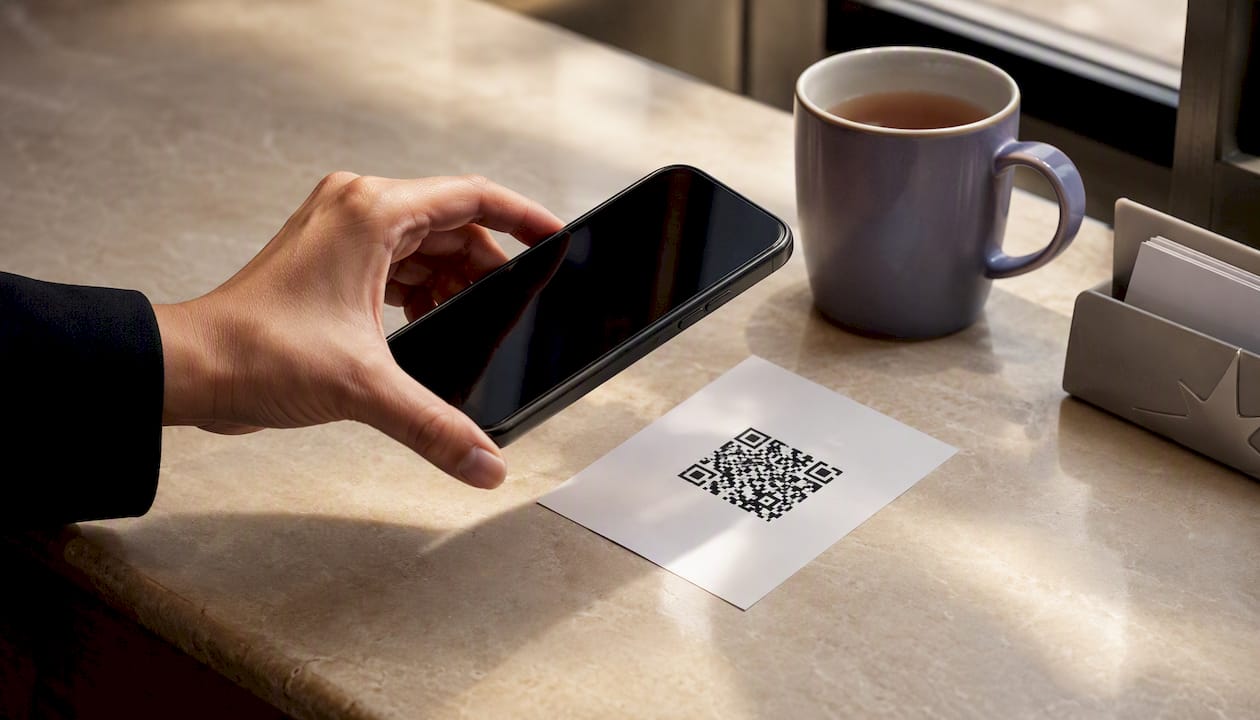
A phased rollout with clear success metrics prevents the most common launch failures. Start with 10–20 invoices to a known customer segment, measure scan rate and payment completion rate, then expand.
Pre-launch tests:
| Test | What to check | Pass condition |
|---|---|---|
| Print scan test | Print at standard size, scan with iPhone and Android | Payment page loads in under 3 seconds |
| Digital scan test | Open PDF on screen, scan with phone camera | Same payment page, correct invoice amount |
| Broken URL test | Temporarily break the redirect URL | Error page, not a blank or wrong page |
| Invoice ID match | Complete a test payment, check processor dashboard | Invoice ID in payment metadata matches invoice |
| TLS check | Inspect the URL in the QR | HTTPS, valid certificate, no redirect to HTTP |
Rollout checklist:
- Update invoice templates (all formats: PDF, email, printed).
- Train the AR team on what a successful scan looks like and how to handle customer questions.
- Add one line to invoice email copy: “Scan the QR code below to pay instantly — no app needed.”
- Set up accounting rules so payments tagged with an invoice ID auto-match in your books.
- Define KPIs: scan rate (QR scans / invoices sent), payment completion rate, and average days to payment.
Reconciliation: Include the invoice ID in the payment redirect URL as a query parameter (?invoice_id=INV-1234) or in the QR payload. Most processors return this parameter as payment metadata, which lets your accounting software or Zenith-books’s automated reconciliation match payments to invoices without manual intervention.
Common problems and fixes with invoice QR codes
Most scan failures trace back to four causes: poor print quality, wrong QR size, a broken or expired redirect URL, or a mismatched invoice ID in the payment metadata.
- QR won’t scan from print: Recreate the QR at a higher resolution (minimum 300 DPI for print). Check that the quiet zone (white border) is intact — cropping it kills scanability.
- QR won’t scan from screen: The PDF viewer may be rendering at low resolution. Export the invoice at 150 DPI or higher, or embed the QR as a vector if your tool supports it.
- Payment page doesn’t load: The redirect URL may have changed or expired. Regenerate the QR with the current payment URL and re-send the invoice.
- Wrong amount on payment page: The URL or API call is pulling stale invoice data. Regenerate the QR after finalizing the invoice amount — never generate before the invoice is locked.
- Invoice ID missing from payment metadata: The invoice ID was not included in the redirect URL or API payload. Update the QR generation step to append
?invoice_id=to every URL. - Customer’s phone won’t scan: Older Android devices (pre-2018) may lack native QR scanning. Add a short payment URL below the QR as a fallback: “Or visit pay.yourprocessor.com/INV-1234.”
- Camera permission denied: Some corporate phones block camera access for QR scanning. Suggest the customer use a dedicated QR scanner app (Google Lens, for example) or the payment URL fallback.
How automation simplifies invoice QR code workflows
Generating, embedding, emailing, and reconciling QR codes manually across dozens or hundreds of invoices per month is where the process breaks down. Automation handles the entire chain: QR generation triggers when an invoice is created, the Base64 PNG is decoded and embedded into the PDF template, the invoice is filed to Google Drive, and payment metadata flows back to match against the open invoice.
Zenith-books handles each of these steps. When an invoice is issued, the platform auto-generates the payment QR, decodes the Base64 response, and embeds the QR into the PDF before sending. Payments that come in via the QR link carry the invoice ID, which Zenith-books uses to auto-match against open receivables. The result shows up in live cash flow synced to Google Sheets so the finance team sees cleared invoices in real time without touching a spreadsheet.
The operational shift: When QR generation and reconciliation are automated, the AR team stops chasing payments and starts reviewing exceptions. That is a different job — and a better one.
For teams processing invoices from email, Zenith-books’s automated invoice processing workflow captures incoming invoices, extracts data, and feeds it into the same reconciliation loop, so both payables and receivables run without manual re-entry.
When are invoice QR codes actually worth the effort?
QR codes deliver the clearest return for businesses that send more than 20 invoices per month, have a meaningful share of invoices paid late, or serve customers who are comfortable paying on mobile. If you send 5 invoices a year to the same 3 clients who pay by ACH on net-30 terms, the setup cost outweighs the benefit.
The businesses that gain the most:
- Volume: 20+ invoices per month, where manual reconciliation time compounds.
- Late payment rate: If a significant portion of invoices are paid late, removing friction from the payment step is one of the fastest levers available.
- Remote or mobile-first clients: Customers who receive invoices by email and pay on their phones are the natural audience for scan-to-pay.
- In-person service businesses: A printed invoice with a QR at the point of service (a contractor handing over a job completion invoice, for example) converts faster than any other payment method.
The minimum test worth running: add a QR to several invoices over a test period, track how many result in payment faster than your baseline, and compare. If the scan-to-pay invoices clear faster, expand. If not, the issue is likely customer tech readiness, and a payment URL fallback solves it.
Zenith-books automates the entire invoice QR workflow
Manually generating a QR, decoding Base64, embedding it in a PDF, filing the invoice, and then matching the payment back to the right record takes time that compounds across every invoice you send. Zenith-books cuts that chain to a single trigger.
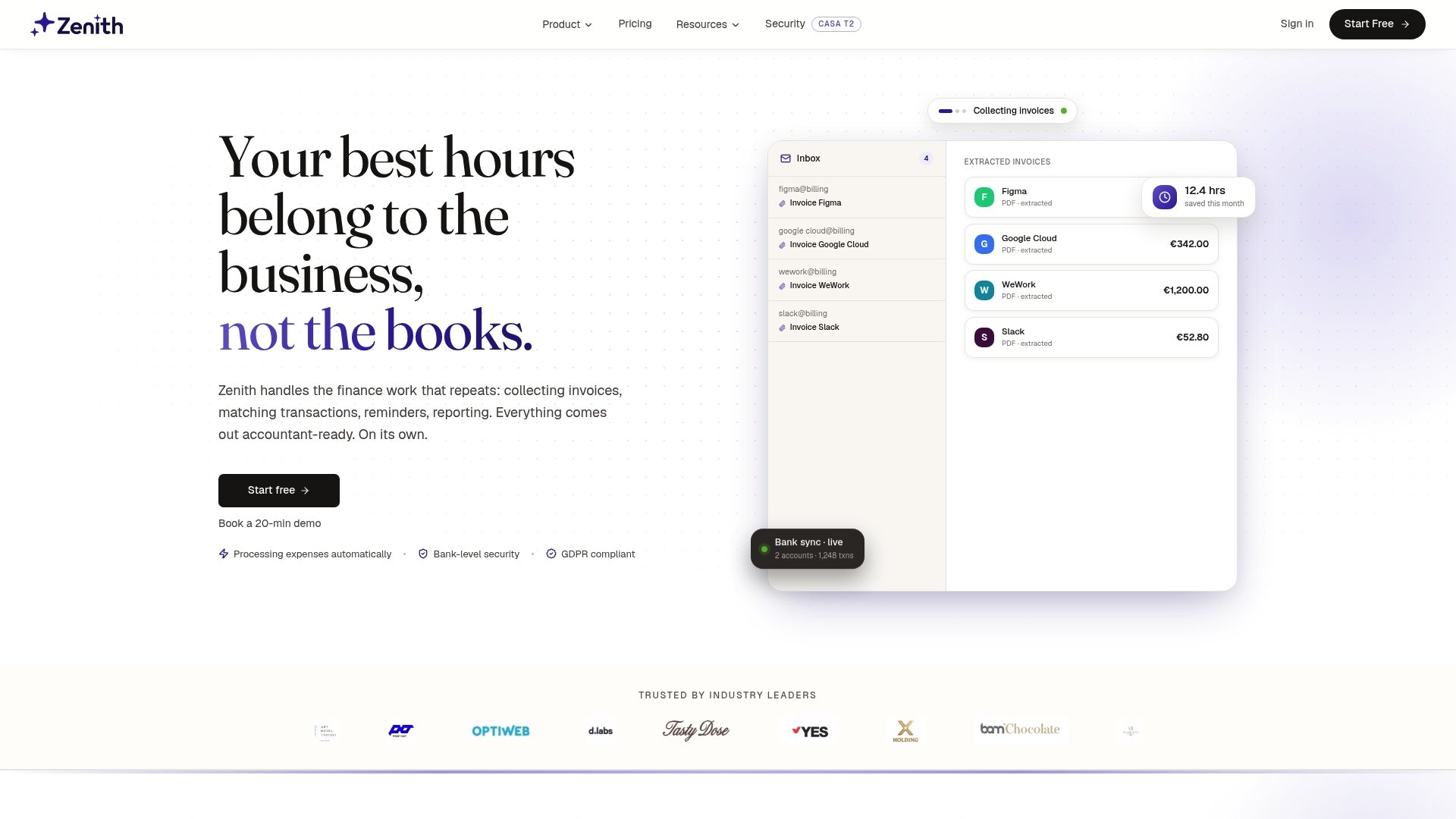
When you issue an invoice through Zenith-books, the platform generates the payment QR automatically, embeds it into the PDF, and files the invoice to Google Drive with a consistent naming convention. When the payment arrives, the invoice ID in the QR’s redirect URL lets Zenith-books match it automatically, and the cleared balance appears in your live cash dashboard. No manual decoding, no copy-paste, no spreadsheet matching.
Finance teams at companies like Združenje YES and BAM Chocolate report zero manual entry across transactions after switching to Zenith-books’s automation. Start with the free payment QR generator to test the embed flow, then explore the full automation suite to see how QR generation fits into a complete invoice-to-cash workflow.
Sources
The sources below are the most actionable references for implementation and compliance:
- Create QR Codes for Invoices to Simplify Payments
- How do QR codes for payments work? | PayPal UK
- The Role of QR Codes in the Evolution of Invoicing
- Global Overview of Mandatory QR Codes on Invoices and …
Standards references:
This article is general information, not a substitute for advice from a qualified financial advisor. Consult a qualified financial professional about your own circumstances before acting on anything here.