


The most reliable way to get a live google sheets bank feed running is an open banking sync that writes transactions straight into a spreadsheet, no CSV juggling required. Set one up in roughly five minutes using a read-only PSD2 connection. If you only need a one-off import, exporting a CSV from your bank portal and pasting it in still works fine. Several providers offer automated routes worth trying.
TL;DR:
- Open banking services using PSD2 rails provide automated, daily transaction updates in Google Sheets for multiple accounts, typically costing around €5 per account monthly.
- Manual CSV imports are free but require regular effort and careful handling of date formats, making them suitable only for infrequent or single account use.
- Setting up a live sync takes about five minutes, involving account verification, bank authentication, account selection, and column mapping, with data refreshed automatically or on demand.
- Ensuring the provider uses OAuth-style, read-only access that redirects to your bank’s login page is crucial for security and compliance with PSD2 standards.
- For frequent reconciliation, automation makes sense at a small additional cost, especially when managing multiple accounts or needing real-time visibility, while occasional users can rely on manual CSV imports.
What are the realistic ways to get bank transactions in to Google Sheets?
Four methods actually work in practice, and which one suits you depends on how many accounts you’re tracking and how often you need fresh numbers.
- Marketplace add-ons. Google Workspace Marketplace apps that connect to your bank and write rows into a sheet on a schedule. Good for non-technical users who want something running today.
- Open banking services. Dedicated bank-sync tools (Zenith among them) that use PSD2 rails to pull transaction data and push it to Sheets, an API, or CSV. Best fit when you’re running more than one account or need daily visibility.
- Manual CSV export/import. You log into your bank, download a statement, and paste it into Sheets. Zero cost, zero setup, but entirely manual every single time.
- Custom Apps Script or API integration. You write the code that fetches data from a bank or aggregator API and appends it to a sheet. Full control, but it demands ongoing maintenance.
Cost tends to track convenience. CSV import costs nothing but your time. Open banking services generally charge per connected account, often just a few euros a month. The developer route has no subscription fee but a real cost in build and upkeep hours.
Frequency matters more than most people think when choosing. If you’re reconciling weekly or need same-day visibility on cash position, manual CSV work becomes a chore fast, usually within the first month. Someone checking their personal current account once a month, on the other hand, gains almost nothing from automation and might find CSV import perfectly sufficient indefinitely.
Skill level is the other filter. Marketplace add-ons and dedicated open banking services need no coding at all. The Apps Script route needs someone comfortable with JavaScript, API authentication, and debugging failed requests at 11pm when a scheduled trigger silently stops firing. That’s a real scenario, not a hypothetical one, and it’s why most small operators outsource the sync rather than build it.
How do you set up an open banking sync in to Google Sheets?
Here’s the full walkthrough, from signup to your first live row of data.
- Create an account with your chosen sync provider. Expect a short verification step, usually just an email confirmation and basic business details.
- Start the bank connection flow. You’ll be redirected to your bank’s own login page, an open banking authentication step where the provider never sees your password. You authenticate directly with your bank, not with the third-party app.
- Select which accounts to sync. Current accounts, savings, and any secondary business accounts you want visible in one place.
- Choose your destination. Point the connection at a specific Google Sheet, and map which columns hold date, description, amount, and category.
- Set the refresh schedule. Most services offer daily automatic refresh, with a manual “sync now” button for whenever you need instant numbers before a meeting.
- Confirm the first pull and check the data. Scan the first batch of rows for correct date formatting and currency before you build anything on top of it.
The actual bank authentication step takes seconds. It’s the standard strong customer authentication flow required under PSD2: a redirect to your bank, a login, sometimes a two-factor code, then you’re back in the provider’s app with accounts listed. Whole process, start to finish, usually runs under five minutes for a single account.
Freshness expectations vary by provider, but most operate on a daily automatic refresh with a manual override. That’s a meaningful difference from a CSV workflow, where “freshness” means whatever day you last remembered to log in and download a statement.
Pricing shapes cluster around two models: a flat monthly fee for the whole connection, or a per-account charge that scales with how many bank accounts you’re syncing. The per-account model tends to suit smaller operations better, since you’re not paying for capacity you don’t use.
Pro Tip: Run your first sync a day before you actually need the numbers for a decision. That gives you time to catch a mismapped column or an unexpected date format before it corrupts a report you’re about to send to a client or investor.
Can I connect my bank in to Google Sheets without an add-on?
Yes, via CSV export and manual import, though it comes with more friction than most people expect on the first attempt.
- Log into your bank’s online portal and locate the statement export option. Most UK and European banks bury this under “Statements” or “Download transactions”, and formats vary: some give you clean CSV, others hand you a CSV with a header row full of account metadata you’ll need to strip out.
- Open the file and check the date format before importing. UK banks often export dates as DD/MM/YYYY, but Sheets sometimes reads this as MM/DD/YYYY depending on your spreadsheet locale, which silently corrupts every date past the 12th of the month.
- Use File > Import in Sheets and choose “Insert new sheet” or “Append to current sheet”. Appending is almost always the wrong default. It’s what causes duplicate rows when you forget you already imported last Tuesday’s data.
- Normalise the data with formulas. Wrap ambiguous date strings in
DATEVALUE()and force numeric amount columns throughVALUE()to strip stray currency symbols or thousand separators the export left behind. - Build a duplicate check before you append new rows. A simple
COUNTIFS()against date, amount, and a truncated description catches most repeats before they land in your ledger.
CSV is genuinely fine for occasional personal tracking, tax-year reviews, or a one-off audit. It becomes a real burden the moment you’re doing this weekly across more than one account. At that point you’re spending 20 to 30 minutes a week on a task a sync connection handles automatically.
Should you build a custom feed with Apps Script and APIs?
Only if you have a genuinely unusual requirement that off-the-shelf tools don’t cover, or you’re a developer who wants full control over the pipeline.
- Apps Script works well for small, simple pulls where you’re comfortable writing and maintaining JavaScript triggers inside Google’s own environment.
- Bank or aggregator APIs give you the raw data feed, but you’re responsible for handling authentication tokens, refresh cycles, and error handling yourself.
- Middleware tools sit between the bank API and your sheet, handling normalisation and scheduling so you’re not rebuilding that logic from scratch.
Authentication should always be OAuth-style and read-only, following the same PSD2 principles that govern commercial sync tools: your code authenticates against the bank directly, never against a stored password.
The basic flow is fetch, normalise, append, dedupe, in that order, every single run. Watch for API rate limits and Sheets’ own row-count ceiling, which becomes a real constraint once you’re logging years of transaction history across several accounts. Host the scheduled job on a lightweight cloud function or cron service rather than relying on a machine you might switch off, and log every failed run somewhere you’ll actually see it.
Pro Tip: Build your dedupe key from transaction date, amount, and a truncated description, not the full description string. Banks routinely add tiny variations to descriptions between pulls, and a full-string match will silently let duplicates through.
What security checks matter before you connect your bank account?
Connecting a bank account to any third-party tool should mean giving up nothing you’d regret. Here’s what to confirm before you click “authorise”.
- Confirm the connection uses PSD2-based open banking rails, not screen scraping or a request for your actual banking password.
- Check the flow redirects you to your bank’s own login page, never a form inside the third-party app itself.
- Ask what data the provider stores and for how long, and whether that includes full account numbers or just transaction-level detail.
- Find the revoke-access setting, usually inside your bank’s own app under connected third parties, and check it periodically.
PSD2 sets the regulatory floor here: it requires strong customer authentication and mandates that account information providers use secure, API-based access rather than storing your login details. The FCA’s open banking guidance is explicit that providers should never ask for your banking credentials directly, only redirect you to authenticate with the bank itself.
That read-only, OAuth-style connection is the baseline every legitimate provider should meet. If a tool asks you to type your online banking password into its own form, that’s your signal to stop and look elsewhere.
What’s the best column layout for a bank feed spreadsheet?
A clean structure makes reconciliation almost mechanical instead of a monthly headache. Use one row per transaction and keep formulas out of the raw data columns so a resync never overwrites your calculations.
| Column | Purpose | Example formula |
|---|---|---|
| Date | Transaction date, normalised | =DATEVALUE(A2) if imported as text |
| Description | Raw bank description | No formula, keep as-is |
| Amount | Signed value, negative for outgoings | =VALUE(C2) to strip symbols |
| Category | Mapped from a lookup sheet | =VLOOKUP(B2, Categories!A:B, 2, FALSE) |
| Running balance | Cumulative total | =SUM($D$2:D2) |
| Dedupe key | Concatenated check field | =D&E&LEFT(B,1) |
Category mapping works best as a separate lookup sheet: one column of keywords, one column of category labels, referenced with VLOOKUP or INDEX/MATCH from your main transaction sheet. Update the mapping sheet once and every future transaction inherits the correct category automatically, no manual tagging required.
For reporting, a pivot table built off the raw transaction range gives you monthly totals by category in seconds. Select the whole range, insert a pivot table, drop Category into rows and Amount into values, and you’ve got a working expense breakdown without writing a single formula.
For accounts running more than one currency, add a base-currency column rather than mixing currencies in a single amount field. A dedicated FX mapping sheet, or a simple conversion formula against a daily rate, keeps totals meaningful across the whole ledger.
Why do bank feeds show duplicate or missing transactions?
Most sync issues trace back to one of four causes, and each has a quick fix.
- Pending vs posted transactions. A card payment often appears as “pending” the day it happens, then reappears as “posted” once it clears, sometimes with a slightly different description or timestamp. Reconcile against posted transactions only, and treat pending entries as provisional.
- Duplicate rows. Usually caused by appending a CSV import on top of data you’d already synced, or a provider re-pulling a date range after a failed run. A dedupe key built from date, amount, and truncated description catches nearly all of these.
- Stale authorisations. Open banking consents typically expire after 90 days under PSD2 rules, at which point you’ll need to reauthorise through the same bank login flow you used originally, not through a password reset.
- Persistent gaps or errors. If transactions are missing for more than a day or two and reauthorising doesn’t fix it, contact your provider first. If they confirm the connection is healthy on their end, the issue likely sits with your bank’s own open banking API.
How does Zenith’s bank sync actually work in practice?
Zenith runs on a read-only PSD2 connection, covering a broad network of banks across many European countries. You authenticate directly with your bank, the same redirect-based flow described earlier, and Zenith never sees or stores your banking password.
Once connected, transaction data can be delivered to four destinations depending on how you work:
- Google Sheets, for anyone running budgets, cash flow trackers, or reconciliation sheets already.
- Claude via MCP, for teams who want to query their financial data conversationally.
- REST API, for developers building their own dashboards or internal tools, documented at Zenith’s API reference.
- CSV, for anyone who still wants a manual export option on hand.
| Fact | Detail |
|---|---|
| Connection type | Read-only, PSD2 compliant |
| Coverage | Extensive coverage across numerous banks in Europe |
| Setup time | Takes a few minutes per account |
| Price | Generally priced per account per month |
| Guarantee | Money-back guarantee available |
Setup takes about five minutes per account, and pricing runs at €5 per account per month, backed by a 30-day money-back guarantee if it doesn’t fit your workflow.
Author’s take: when automation actually pays off
Live sync earns its cost the moment you’re juggling more than one account, or reconciling weekly rather than monthly, benefiting from accounting workflow automation software for mid-market leaders. That’s the line, not some fixed business size. A sole trader with two accounts and a Monday-morning cash check benefits from automation just as much as a five-person team.
If you’re tracking a single personal account and glancing at it occasionally, CSV import is genuinely fine. Don’t overthink it. For anyone doing regular bookkeeping across multiple accounts, set up a sync connection today and stop rebuilding the same import routine every week.
— Gašper Anderle
Get your bank feed running in Google Sheets today
Zenith gets your accounts talking in to Google Sheets without a single CSV download, ever again, for €5 per account a month. That’s the real difference against the manual route covered above: no weekly export ritual, no reformatting dates, no duplicate-row cleanup, just a live feed that refreshes on its own.
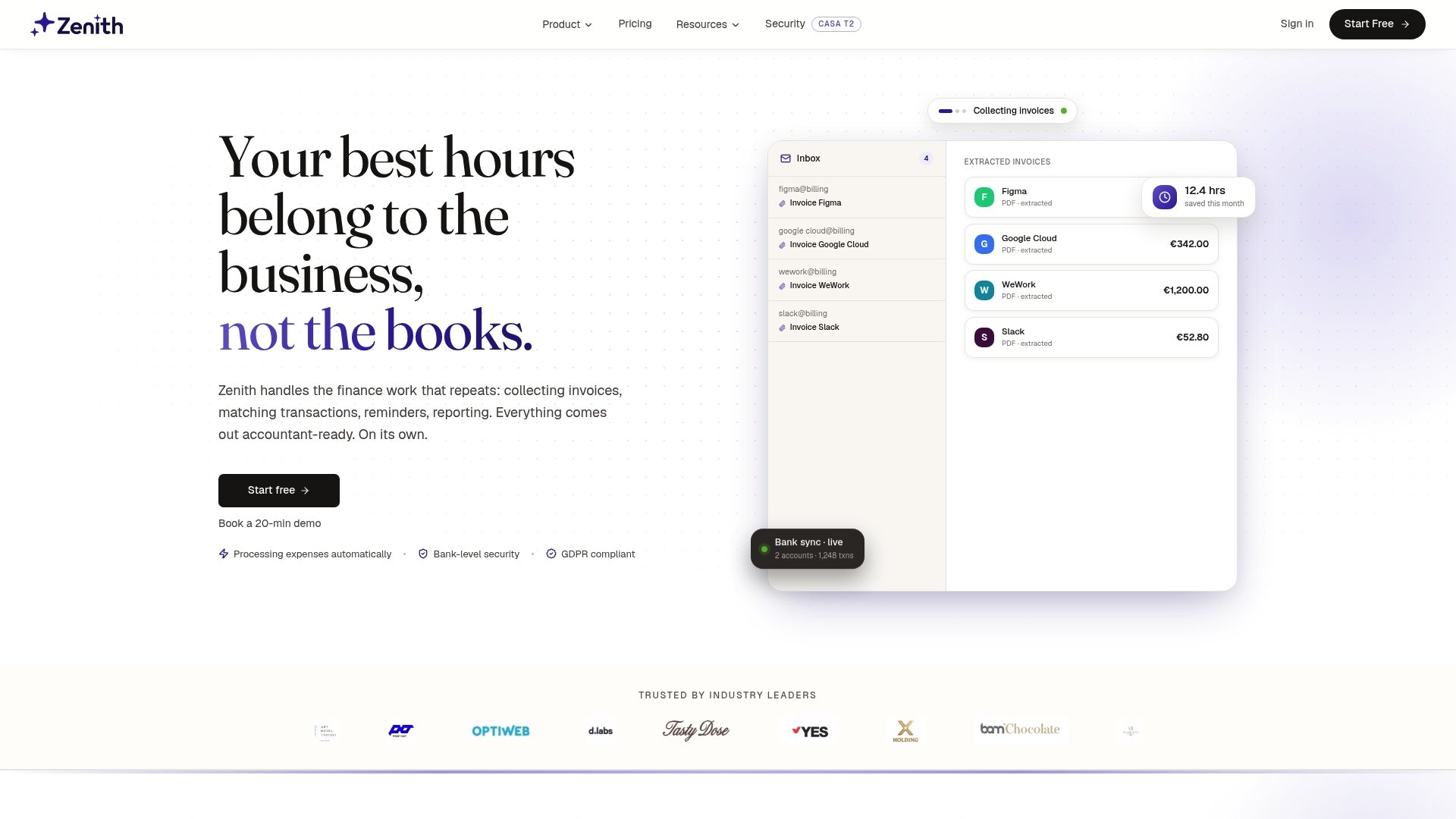
Setup takes five minutes per account through a read-only PSD2 connection, the same secure standard covered in the security checklist above, and you choose whether transactions land in Sheets, Claude, a REST API, or CSV. Every plan carries a 30-day money-back guarantee, so there’s no risk in testing it against your current spreadsheet before committing. If you’re managing balances across several accounts, the consolidated cash balances view is worth a look alongside the core sync. Start your connection now at Zenith’s bank sync page and have your first live transactions in Sheets before your coffee goes cold.