


Yes, you can use spreadsheets for Making Tax Digital — but not on their own. HMRC requires every spreadsheet to connect to MTD-compatible software through a digital link before any figures reach HMRC. A digital link means an automated, unbroken data transfer: a formula reference, a CSV import, a macro, or an API connection. Copying a number by hand from your spreadsheet into a submission portal breaks the chain and puts you out of compliance.
Two actions to take right now:
- Check whether you need to join MTD. From April 6, 2026, sole traders and landlords with combined gross income above £50,000 must comply. If you are close to that threshold, confirm your position now.
- Pick your software route. Either add bridging software that reads your existing spreadsheet and submits to HMRC, or switch to a full accounting product that handles records and submission together.
Key Takeaways
Spreadsheets are MTD-compliant only when connected to HMRC-recognized software through a digital link — manual copy-paste is prohibited, and the threshold for mandatory compliance starts at £50,000 combined gross income from April 6, 2026.
| Point | Details |
|---|---|
| Spreadsheets need a digital link | A formula, CSV import, macro, or API connection to bridging software is required — manual rekeying is not permitted. |
| MTD thresholds and dates | Mandatory from April 2026 for income over £50,000; dropping to £30,000 in 2027 and £20,000 in 2028. |
| Three-tab spreadsheet structure | Use a transactions tab, a categories master, and a quarterly summary tab with SUMIF formulas for clean submissions. |
| Choose software before signing up | HMRC recommends selecting compatible software before registering for MTD — confirm it supports your file format and link method. |
| Zenith-books automates the hard parts | Live bank sync, AI invoice extraction, and auto-categorization to Google Sheets reduce MTD overhead without abandoning spreadsheets. |
Official links and useful resources to read next
Start with the HMRC pages — they are the authoritative source for thresholds, software lists, and sign-up:
- Find out if and when you need to use MTD for Income Tax — open this first to confirm whether and when you must join.
- Find software that works with MTD for Income Tax — HMRC’s recognized software list; use it to verify any tool you are considering.
- Create digital records — HMRC guidance — the definitive reference for what counts as a digital record and which linking methods are accepted.
- Choose the right software for MTD for Income Tax — explains the two software types and what features to check before buying.
- Sign up your business for MTD for Income Tax — use this when you are ready to register; agents can also sign up clients here.
- LITRG — Record keeping and quarterly updates for MTD — plain-English guidance from the Low Incomes Tax Reform Group, particularly useful for sole traders on lower incomes navigating the bridging route.
- ICAEW MTD software guidance — detailed technical breakdown of functional compatibility requirements and API feature variations; useful if you are an accountant or agent evaluating products for clients.
This article is general information, not a substitute for advice from a qualified financial advisor. Consult a qualified financial professional about your own circumstances before acting on anything here.
Table of Contents
- What are the HMRC rules for making tax digital spreadsheets?
- How do you make a spreadsheet MTD-ready?
- Bridging software versus full accounting software: which suits you?
- How do you choose the right MTD software for your spreadsheet?
- What should your MTD spreadsheet actually look like?
- What goes wrong with MTD spreadsheets and how do you fix it?
- How do you handle VAT schemes in your MTD spreadsheet?
- Why automation often wins over time for small businesses
- Zenith-books cuts the MTD overhead that spreadsheets leave behind
- Sources
What are the HMRC rules for making tax digital spreadsheets?
HMRC’s MTD for Income Tax rules rest on two pillars: digital records and an unbroken digital link from those records to submission.
Digital records means every transaction must be captured and stored in software, not on paper or in an unlinked file. For each transaction HMRC expects, at minimum, the date, the amount, and the income or expense category. You must also keep records for at least five years after the 31 January self-assessment deadline for the relevant tax year — so a 2026/27 return filed in January 2028 requires records kept until at least January 2033.
The digital link requirement is where most spreadsheet users trip up. HMRC lists four accepted methods: linked cells (a formula in one file pulling from another), CSV import and export, macros or scripts that transfer data automatically, and API connections via bridging software. What is not on that list: typing a number from your spreadsheet into a web form, or copy-pasting a cell value. Both count as manual rekeying and are prohibited.
Who must join and when:
From April 6, 2026, MTD for Income Tax is mandatory for sole traders and landlords with combined gross income over £50,000. The threshold drops to £30,000 in April 2027 and to £20,000 in April 2028. If you are a landlord with a side business, HMRC adds both income streams together when assessing your threshold.
Three immediate compliance actions:
- Confirm your combined gross income against the current £50,000 threshold.
- Choose your software before you sign up for MTD — HMRC explicitly recommends this order.
- Test your digital link well before your first quarterly deadline, not the night before.
How do you make a spreadsheet MTD-ready?
The goal is a spreadsheet that produces clean quarterly summary figures and maintains a persistent, testable digital link to your bridging or accounting software. Here is how to build or adapt one.
1. Map your categories to HMRC’s SA103 schema. The SA103 is the self-employment supplementary page. Your income and expense categories must map to its boxes: turnover, cost of goods sold, employee costs, premises costs, repairs, general admin, motor expenses, travel, advertising, finance charges, legal and professional fees, and other allowable expenses. If your spreadsheet uses freeform labels like “misc” or “stuff,” fix that first.
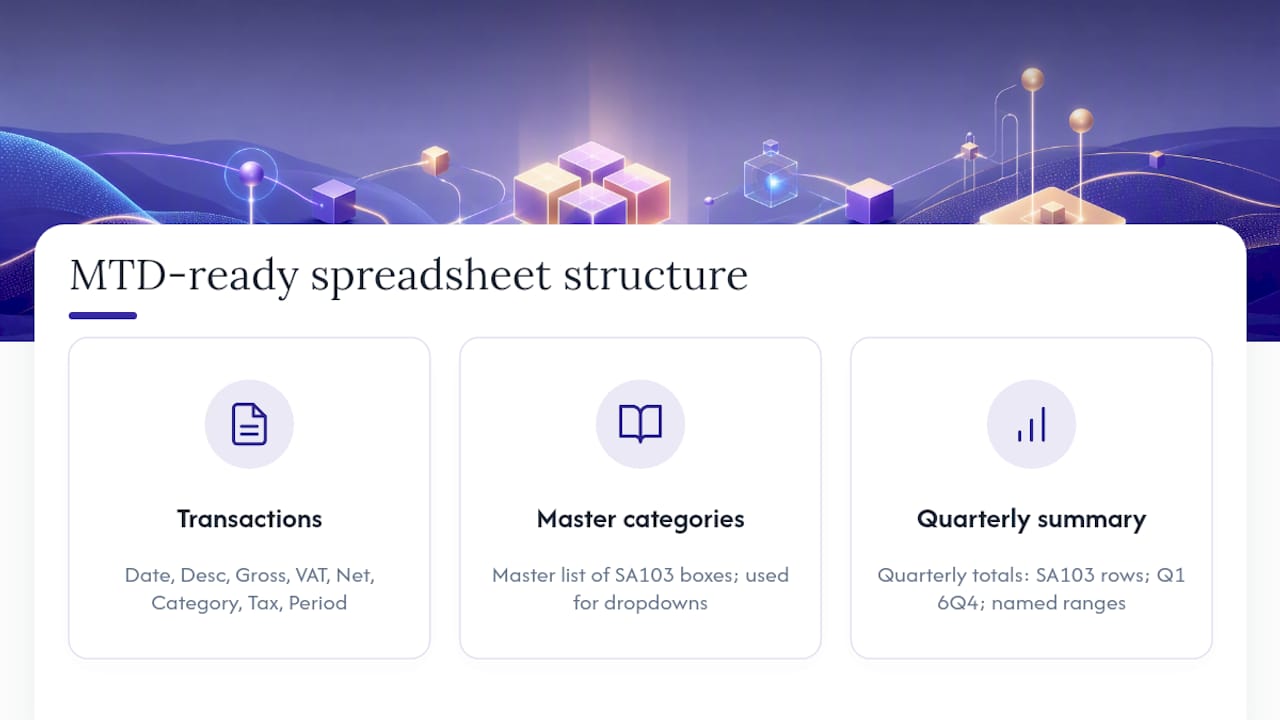
2. Set up your transactions tab with required columns. Every row needs: date (DD/MM/YYYY), description, gross amount, VAT amount (if VAT-registered), net amount, category (from your SA103 map), and a tax code column if you handle multiple rates. Add a “period” column (Q1, Q2, Q3, Q4) so your summary tab can filter by quarter automatically.
3. Build a summary tab that produces quarterly totals. Use SUMIF or SUMIFS formulas referencing the transactions tab. One row per SA103 category, one column per quarter. This is the tab your bridging software will read — keep it clean, with no merged cells, no blank rows inside the data range, and named ranges for every quarterly total block.
4. Add data validation to reduce entry errors. Drop-down lists for the category column (sourced from a master categories tab) prevent typos that break your SA103 mapping. Date validation (DD/MM/YYYY format only) stops bridging tools from misreading entries. Currency formatting on amount columns catches accidental text entries.
5. Maintain an audit trail. Keep an immutable raw-data tab where original transaction records are never edited. Make corrections in a separate categorized ledger tab, and log every change in a timestamped change-log tab — who changed what, when, and why. LITRG recommends this pattern specifically to preserve auditability while keeping your summary tab clean for submission.
6. Set up your export or link method. For CSV export: name your quarterly summary ranges clearly (e.g., “Q1_Summary”), export as a flat CSV with headers matching your bridging tool’s expected column names. For linked cells: if your bridging tool reads a live Excel or Google Sheets file, confirm it references the summary tab by tab name and range address — then never rename that tab. For API-based bridging: follow the vendor’s mapping guide to connect each named range to the correct HMRC field.
7. Test before you submit. Run a dry submission in your bridging software’s test or sandbox mode if one is available. Confirm the quarterly totals in the software match your spreadsheet’s summary tab exactly.
Pro Tip: Update your transactions tab weekly, not monthly. Backfilling three months of receipts before a quarterly deadline is where most errors creep in — and trade press consistently flags infrequent updates as the single biggest behavioral failure mode for spreadsheet-based MTD compliance.
Bridging software versus full accounting software: which suits you?
Both routes are HMRC-recognized. The right choice depends on how well-structured your spreadsheet already is, how much ongoing admin time you can accept, and where your business is heading.
The spreadsheet-plus-bridge route suits a sole trader who already keeps tidy records, understands their SA103 categories, and wants the lowest marginal cost. Bridging tools typically cost less per year than full accounting subscriptions. The trade-off is maintenance: you own the spreadsheet structure, you maintain the digital link, and you are responsible for catching formula breaks or mapping errors before each quarterly deadline.
The failure modes here are mostly behavioral. A bridging tool has no bank feed, no receipt capture, and no reminder that your Q2 figures look wrong. If you fall behind on entries and try to backfill before a deadline, errors compound quickly. Tax Adviser Magazine notes that the spreadsheet-plus-bridge route often becomes a false economy for growing businesses, because reconciliation overhead and fragile links eat the cost saving.
Full accounting software handles record creation, categorization, bank reconciliation, and HMRC submission in one place. Bank feeds pull transactions automatically; receipt capture tools photograph and categorize expenses. Quarterly updates become a review-and-submit task rather than a data-entry task. The cost is higher, and there is a learning curve, but the ongoing admin time is substantially lower.
One practical trap with bridging tools: many expect a rigid vendor template. If your spreadsheet layout does not match their template, you will spend time remapping columns before you can submit anything. Check template requirements before you buy.
Quick decision guide:
- Keep spreadsheets plus bridging if your records are already well-structured, your income is straightforward, and you are comfortable maintaining the link yourself.
- Move to integrated accounting software if you have multiple income sources, want bank feeds and receipt capture, or find yourself spending more than an hour per quarter on reconciliation.
How do you choose the right MTD software for your spreadsheet?
Start with compatibility, not price. A tool that cannot read your spreadsheet layout is useless regardless of cost.
Checklist to evaluate any bridging tool or accounting product:
- File format support. Does it accept your spreadsheet format (Excel .xlsx, Google Sheets, CSV)? Some tools only accept CSV exports; others connect live to Google Sheets or Excel via API.
- Template requirements. Does it require you to use its own template, or can it map to your existing column structure? Ask this before trialing.
- Digital link method. How exactly does the link work: live cell reference, CSV import, or API? Confirm the method is one HMRC accepts.
- Quarterly update and annual return support. Some tools handle quarterly updates only; others also submit the annual self-assessment return. Confirm both are covered.
- Bank feeds and receipt capture. Available in full accounting products, rarely in bridging tools. Decide whether you need them.
- Agent access. If your accountant submits on your behalf, confirm the tool supports agent credentials and multi-client management.
- Multiple business support. Landlords with a separate self-employment income need a tool that handles more than one business under one login.
- Security and hosting. Look for data encryption in transit and at rest, UK-based hosting or equivalent GDPR-compliant safeguards, and automatic backups. ICAEW’s guidance notes that API feature coverage varies between products — check whether the tool implements optional APIs like estimated tax calculations, since these affect what you see before you submit.
- Pricing structure. Bridging tools tend to charge a flat annual fee or per-submission fee. Full accounting products typically charge monthly subscriptions, sometimes with add-on costs for bank feeds or extra users. Factor in your time cost, not just the subscription price.
- HMRC recognition. Verify the product appears on HMRC’s recognized software list before committing.
Pro Tip: Ask the vendor for a test submission against a sample spreadsheet before you buy. Any reputable bridging tool should let you map your columns and preview the output. If they cannot show you this, move on.
What should your MTD spreadsheet actually look like?
A compliant spreadsheet needs three tabs: a transactions tab, a categories master, and a quarterly summary.
Transactions tab — required columns:
- Date (DD/MM/YYYY)
- Reference or description
- Gross amount (£)
- VAT amount (£, if applicable)
- Net amount (£)
- Category (from your SA103 map)
- Quarter (Q1–Q4, auto-populated by formula from the date)
- Notes (optional, for audit trail)
Quarterly summary tab — required fields for HMRC quarterly updates:
- Total turnover (income)
- Cost of goods sold
- Employee costs
- Premises costs
- Repairs and maintenance
- General admin
- Motor expenses
- Travel and subsistence
- Advertising and marketing
- Finance charges
- Legal and professional fees
- Other allowable expenses
- Net profit or loss (calculated)
Each figure on the summary tab should be a SUMIF formula pulling from the transactions tab, filtered by quarter and category. No manual entries on the summary tab.
Worked example: A sole trader records a £1,200 client payment on April 15, 2026 (Q1), a £45 software subscription on April 22 (Q1, general admin), and a £120 travel expense on May 3 (Q1, travel). The summary tab’s Q1 column shows: turnover £1,200, general admin £45, travel £120, net profit £1,035. When the bridging tool reads the summary tab via CSV export or linked cell, it picks up those four figures and maps them to the corresponding HMRC fields. Before submitting, compare the bridging tool’s preview screen to your summary tab manually — if the numbers match, you are ready.
Pro Tip: Name your summary tab something static like “MTD_Summary” and never rename it. Bridging tools that use live cell references will break silently if the tab name changes, and you may not notice until submission day.
For a ready-to-use starter template, the Zenith-books solutions page includes workflow resources that can reduce setup time significantly.
What goes wrong with MTD spreadsheets and how do you fix it?
Most submission failures trace back to four problems.
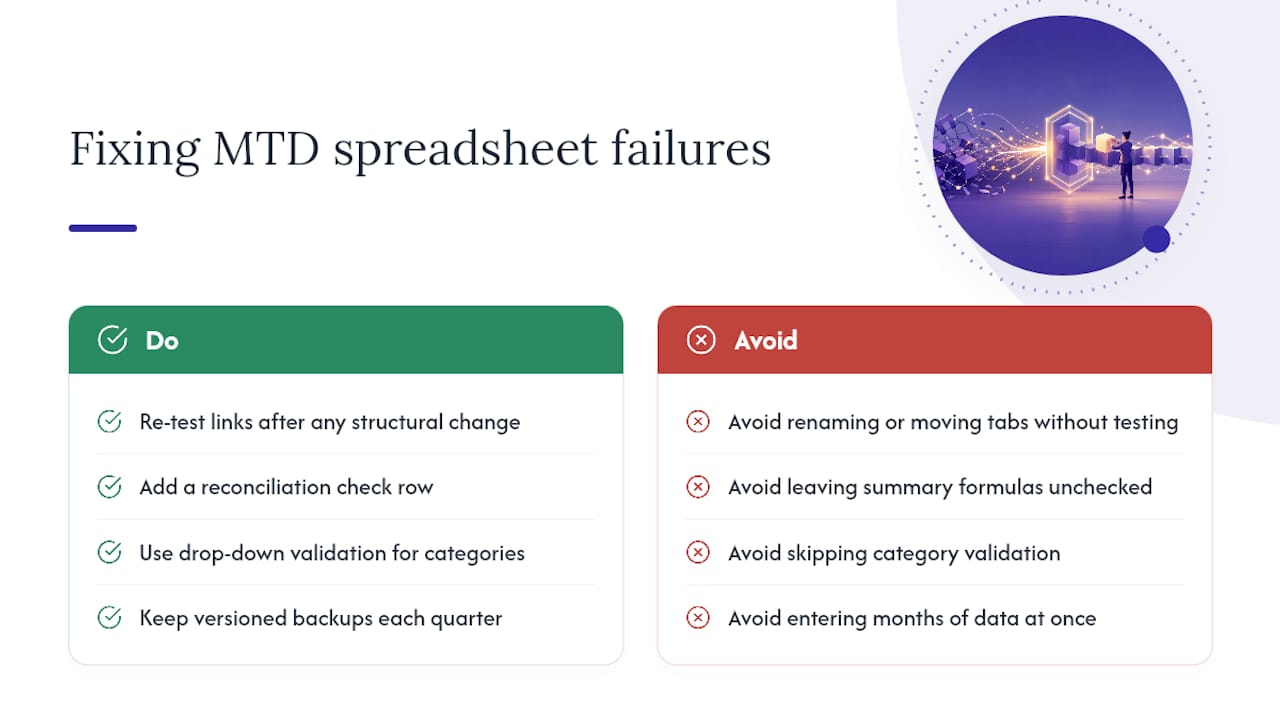
Broken digital links are the most common. A renamed tab, a moved file, or a changed column header silently breaks the connection between your spreadsheet and the bridging tool. The bridging software may not flag this until you attempt a submission. Fix: after any structural change to your spreadsheet, re-test the link immediately by running a preview submission.
Formula errors on the summary tab produce wrong quarterly totals. A SUMIF referencing the wrong category label, or a date range that excludes the last day of a quarter, will underreport income or expenses. Fix: add a reconciliation check row at the bottom of the summary tab that sums all quarterly totals and compares them to the transactions tab’s grand total. If the two numbers differ, something is wrong.
Miscategorized transactions cause HMRC field mismatches. A travel expense coded as “general admin” does not break a submission, but it produces an inaccurate return. Fix: use drop-down validation on the category column and review the category breakdown on your summary tab before every quarterly update.
Backfilled updates are the behavioral failure mode. Owners who update infrequently try to enter three months of transactions in one sitting before a deadline. Errors multiply, receipts go missing, and dates get approximated.
When to get professional help: If you have had a submission rejected more than once, if your income comes from multiple sources with different tax treatments, or if your accountant is submitting on your behalf and cannot access your records cleanly, the spreadsheet route is probably costing you more than a proper accounting product would.
Pro Tip: Keep versioned backups of your spreadsheet at the end of each quarter — name them with the tax year and quarter (e.g., “MTD_2026-27_Q1_final.xlsx”). This gives you a clean audit trail and a recovery point if a file gets corrupted.
How do you handle VAT schemes in your MTD spreadsheet?
VAT-registered businesses face an additional layer: MTD for VAT has been mandatory since April 2022, and the spreadsheet rules are the same — digital records, digital links, no manual rekeying.
Standard VAT accounting is straightforward in a spreadsheet. Add a VAT amount column to your transactions tab and a VAT summary section to your quarterly tab showing output tax, input tax, and net VAT due. Your bridging tool maps these to the nine VAT return boxes.
The Flat Rate Scheme (FRS) changes the calculation. Under FRS, you pay a fixed percentage of your gross (VAT-inclusive) turnover to HMRC rather than accounting for VAT on individual purchases. In your spreadsheet, record gross turnover inclusive of VAT, then calculate your FRS payment as: gross turnover × your sector’s flat rate percentage. You do not reclaim input VAT on purchases (with the limited exception of certain capital goods over £2,000). Your summary tab needs a dedicated FRS calculation row, and your bridging tool must support FRS submissions — not all do, so check this explicitly.
Cash accounting and accruals also affect your spreadsheet structure. Under cash accounting, you record income when payment is received and expenses when paid. Under accruals, you record when the transaction is invoiced or incurred. Your date column must reflect whichever basis you use, consistently, because the bridging tool uses that date to assign transactions to quarters.
One practical note: if you switch VAT schemes mid-year, you will need to clearly mark the transition date in your spreadsheet and confirm your bridging tool handles the change correctly. Some tools require a new mapping or a new file for the period after the switch.
Why automation often wins over time for small businesses
Spreadsheets are a rational starting point. They are free, familiar, and flexible enough to handle most sole-trader record-keeping. For a landlord with two properties and straightforward expenses, a well-maintained spreadsheet plus a bridging tool is a perfectly defensible MTD setup.
The problem is fragility. A spreadsheet is only as good as the person maintaining it, and the maintenance burden grows with the business. A second income stream means a second set of categories. A new employee means payroll entries. A VAT registration means a parallel VAT return. Each addition creates another place where a formula can break, a link can snap, or a category can drift out of alignment with HMRC’s schema.
The time-cost tipping point arrives earlier than most owners expect. An hour a week on spreadsheet maintenance is 52 hours a year — more than a full working week — before you count the quarterly submission prep. Automation tools that sync bank transactions directly, extract invoice data from email, and categorize expenses without manual input do not just save time. They remove the behavioral risk: there is no backfilling, no version confusion, and no broken link to diagnose at 11 PM before a quarterly deadline.
The ICAEW and trade press both note that the spreadsheet-plus-bridge route suits a narrow profile: well-organized, low-volume, single-income businesses willing to invest in ongoing maintenance. For everyone else, the math on automation tends to favor switching sooner rather than later.
Zenith-books cuts the MTD overhead that spreadsheets leave behind
Spreadsheets and bridging tools put the compliance burden on you. Zenith-books removes most of it by automating the tasks that create MTD risk in the first place.

Zenith-books syncs your bank transactions directly to Google Sheets in real time, so your records are always current — no backfilling, no manual entry. Its AI-powered invoice extraction from email captures and categorizes expenses automatically, cutting the receipt-chasing that derails quarterly updates. The live bank-to-Google Sheets sync means your spreadsheet front-end stays intact if you prefer it, but the data flowing into it is clean, timestamped, and categorized without manual work.
For sole traders and small business owners who want to stay in control of their numbers without spending hours maintaining a fragile spreadsheet structure, Zenith-books is the lower-risk path to MTD compliance. See what it automates for your business at Zenith-books.
Sources
- Find software that works with Making Tax Digital for Income Tax
- Find out if and when you need to use Making Tax Digital for Income Tax
- Use Making Tax Digital for Income Tax - Create digital records
- Choose the right software for Making Tax Digital for Income Tax
- Record keeping and quarterly updates for Making Tax Digital | Low Incomes Tax Reform Group
- ICAEW — Making Tax Digital software guidance
- Making Tax Digital income tax — suitable accounting software (Tax Adviser Magazine)
- Sign up your business for Making Tax Digital for Income Tax