


Reconcile the payout, not the individual charge. Use Stripe’s payout reconciliation report or the Balance Transactions API to pull every transaction tied to a payout ID, then post one summary journal entry into a Stripe clearing account. Fees, refunds, and disputes get their own lines; the net figure matches your bank deposit exactly, and the clearing account should sit at zero once the entry clears.
TL;DR:
- Reconcile payouts by matching the total gross sales, fees, and refunds from the transaction report to the bank deposit, ensuring the clearing account zeroes out.
- Use the payout ID from Stripe’s dashboard or API to retrieve all related transactions, paying attention to
reporting_categoryandautomatic_transfer_id.- Establish a journal entry that debits the Stripe clearing account with gross sales, subtracts fees and refunds, and finally posts the net amount to bank, verifying the balance zeroes after posting.
- Manual payouts, refunds, disputes, or failed transfers require reconstruction of transactions across date ranges, with particular attention to separate dispute and refund transactions.
- Automation tools like Zenith can streamline extraction and categorization, but manual oversight remains necessary for exceptions such as delayed refunds or disputed charges.
Table of Contents
- What the payout reconciliation report tells you and when to run it
- How to find the payout ID and pull its balance transactions
- The clearing account method: one journal entry per payout
- Handling manual payouts, refunds, disputes and failed transfers
- A repeatable checklist for reconciling one payout
- Where automation actually earns its keep
- A bookkeeper’s five checks before closing the books
- Let Zenith run the payout reconciliation routine for you
- Sources
What the payout reconciliation report tells you and when to run it
Stripe’s payout reconciliation report exists for one job: showing you exactly which balance transactions made up a given payout, grouped by reporting_category so you can see gross sales, fees, refunds, and adjustments separately rather than as one blended number. Each row carries the net and gross amount and the payout ID it belongs to, and the whole thing exports as a CSV you can drop straight into a working paper.
Whether you pull it from the Dashboard or via the API depends on volume. For one payout you’re chasing down, the Dashboard’s per-payout export is faster. For monthly close across dozens of payouts, running the report through the reporting API and automating the download saves real time.
A few things worth knowing before you pull the report:
- Automatic payouts (Stripe’s default schedule) let Stripe map every transaction to a specific payout ID automatically, which is why they’re far easier to reconcile.
- Manual payouts have no such mapping. You choose when to pay out, so Stripe can’t pre-group transactions the same way.
- Use the by-ID itemised report for a single payout you’re verifying against a bank line, and the interval itemised report when you need everything across a date range in one file.
How to find the payout ID and pull its balance transactions
In the Stripe Dashboard, open Balances → Payouts, click the payout in question, and you’ll see its ID (formatted po_...) at the top along with an itemised breakdown you can export as CSV directly from that screen.
For anything you want to automate, the API route is cleaner. Two options:
- Call
GET /v1/balance_transactionswithpayout={payout_id}to list every transaction Stripe bundled into that deposit. - Run a
reporting.report_runsjob forpayout_reconciliation.by_id.itemized, which gives you the same data in report form, useful when you’re building a repeatable pipeline.
Pro Tip: Check the type, reporting_category, net, and source fields on each transaction. The automatic_transfer_id field confirms which payout a transaction actually settled into, which matters when a charge and its refund land in different payout windows.
One caveat: instant payouts sit outside the normal automatic payout schedule, and Stripe treats them as a separate transfer type, so double check you’re filtering the right payout ID before you total anything.

The clearing account method: one journal entry per payout
The reconciliation pattern that actually holds up under audit is the Stripe clearing account, set up as an other current asset on your chart of accounts. Gross sales flow into clearing, fees and refunds get pulled out to their own accounts, and what’s left transfers to your bank. That structure keeps gross revenue and fee expense visible instead of buried inside a single net figure, which matters the moment your accountant or an auditor asks where the fee expense line went.
Building the entry follows a fixed order:
- Debit Stripe Clearing for the gross sales total from the payout.
- Credit Sales Revenue for that same gross figure.
- Debit Processing Fees Expense and credit Stripe Clearing for the fee total.
- Debit Refunds/Contra Revenue and credit Stripe Clearing for any refunds included in the payout.
- Debit Stripe Clearing (reducing the balance) and credit Bank for the net amount that actually landed.
A quick worked example: a payout report shows gross sales, fees, and refunds that sum to a net deposit matching the amount hitting the bank, so the clearing account zeros after posting. Post that, match the bank line, and clearing reads zero for the period.
If it doesn’t zero out, something’s off, usually a missing dispute adjustment, a payout still in transit, or a refund that landed in a different payout window entirely. Practitioner guides for Xero reconciliation point to the same fix: pull the itemised report again and check every reporting_category line before assuming the bank statement is wrong.
Handling manual payouts, refunds, disputes and failed transfers
Manual payouts break the neat one-to-one mapping automatic payouts give you, so you’ll need to pull balance transactions for the date range and reconstruct the batch yourself rather than relying on a single payout ID filter.
A few exceptions come up constantly:
- Refunds after the fact: if a refund happens after its original charge was already paid out, it shows up in a later payout. Record it when it appears in that subsequent payout, not by rewriting the earlier period.
- Disputes and chargebacks: these post as their own balance transaction type and usually carry a separate fee; map them to a dedicated disputes account rather than lumping them into general fees.
- Split, held, or failed payouts: if funds are split across two bank deposits, held under a reserve, or a payout fails and requeues to your Stripe balance, don’t force a match. Leave clearing open and document it until the second transfer lands or the hold releases.
- Multi-currency conversions: a currency conversion fee on top of the payout fee needs its own line, or your fee expense account will look understated.
A repeatable checklist for reconciling one payout
Work through this order every time and the process barely takes ten minutes once you’ve done it a few times:
- Identify the bank deposit amount and date, then find the matching payout ID in the Dashboard.
- Download the by-ID itemised report, or pull balance transactions via the API filtered on that payout.
- Sum the transactions by
reporting_category: gross sales, fees, refunds, disputes. - Build the summary journal entry and post it to the Stripe clearing account.
- Match the bank deposit to the net clearing balance and confirm clearing reads zero.
- Note any exception (held funds, disputed charge, delayed refund) in a working file for review.
Pro Tip: Reconcile weekly rather than waiting for month end. A monthly accounting checklist helps here, but catching a mismatched payout on day three beats untangling four weeks of them on day thirty.
If a mismatch won’t resolve, check three things first: whether the payout is still “in transit” rather than paid, whether a refund from this batch actually settled in the next payout, and whether you’ve double counted a dispute reversal.
Where automation actually earns its keep
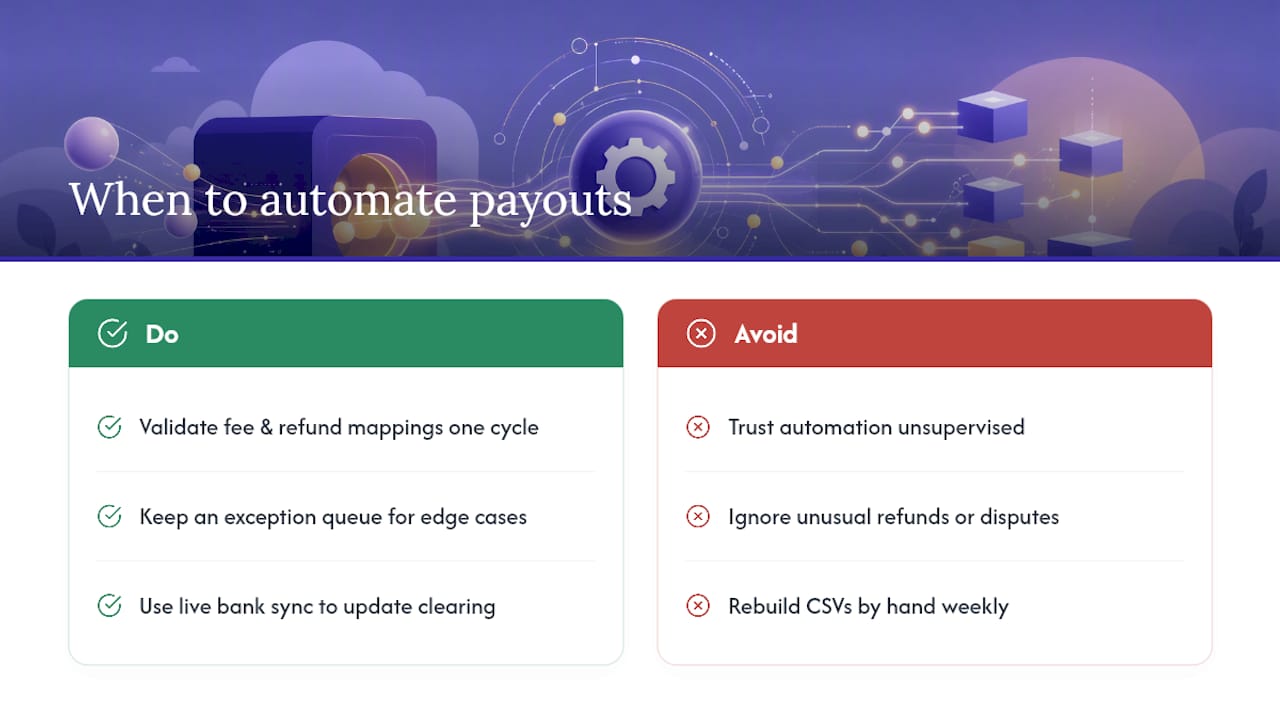
Automation handles the repetitive 90% of this reliably: pulling balance transactions, splitting them by reporting_category, mapping fees to the right GL account, and drafting the summary journal entry the moment a payout lands. What it can’t do safely on its own is judgment calls, an unusual refund pattern, a reserve hold that’s dragging on, or a dispute that needs a human decision on which account absorbs it.
Zenith’s live bank sync to Google Sheets applies this same payout-period logic automatically, pulling transaction data as payouts settle so your clearing account updates without someone rebuilding the CSV by hand each week.
The routine parts of payout reconciliation, extraction, categorisation, matching against bank deposits, are exactly where clients like Združenje YES and BAM Chocolate report cutting their month-end close time, because the repetitive matching disappears from the workload entirely.
If you’re moving to automated reconciliation, validate the fee and refund mappings against a manual reconciliation for at least one full payout cycle before trusting it unsupervised, and keep an exception queue for anything the system can’t categorise cleanly.
A bookkeeper’s five checks before closing the books
Clear open refunds and disputes before you touch anything else. Confirm the payout ID on any unusually large deposit rather than assuming it matches the obvious date. Reconcile the clearing account weekly, not monthly. Log every exception with a note, not just a number. Document your mapping rules once and reuse them; if a payout still won’t balance after that, hand it to your finance lead rather than forcing a number that doesn’t tie out.
— Gašper
Let Zenith run the payout reconciliation routine for you
Everything above, pulling balance transactions, mapping fees to the right account, building the summary journal entry, is exactly what Zenith automates for finance teams tired of rebuilding the same CSV every payout cycle. Instead of a bookkeeper manually filtering payout_reconciliation.by_id.itemized reports, Zenith extracts the transaction data, categorises fees and refunds against your chart of accounts, drafts the clearing entry, and syncs the result to Google Sheets in real time.
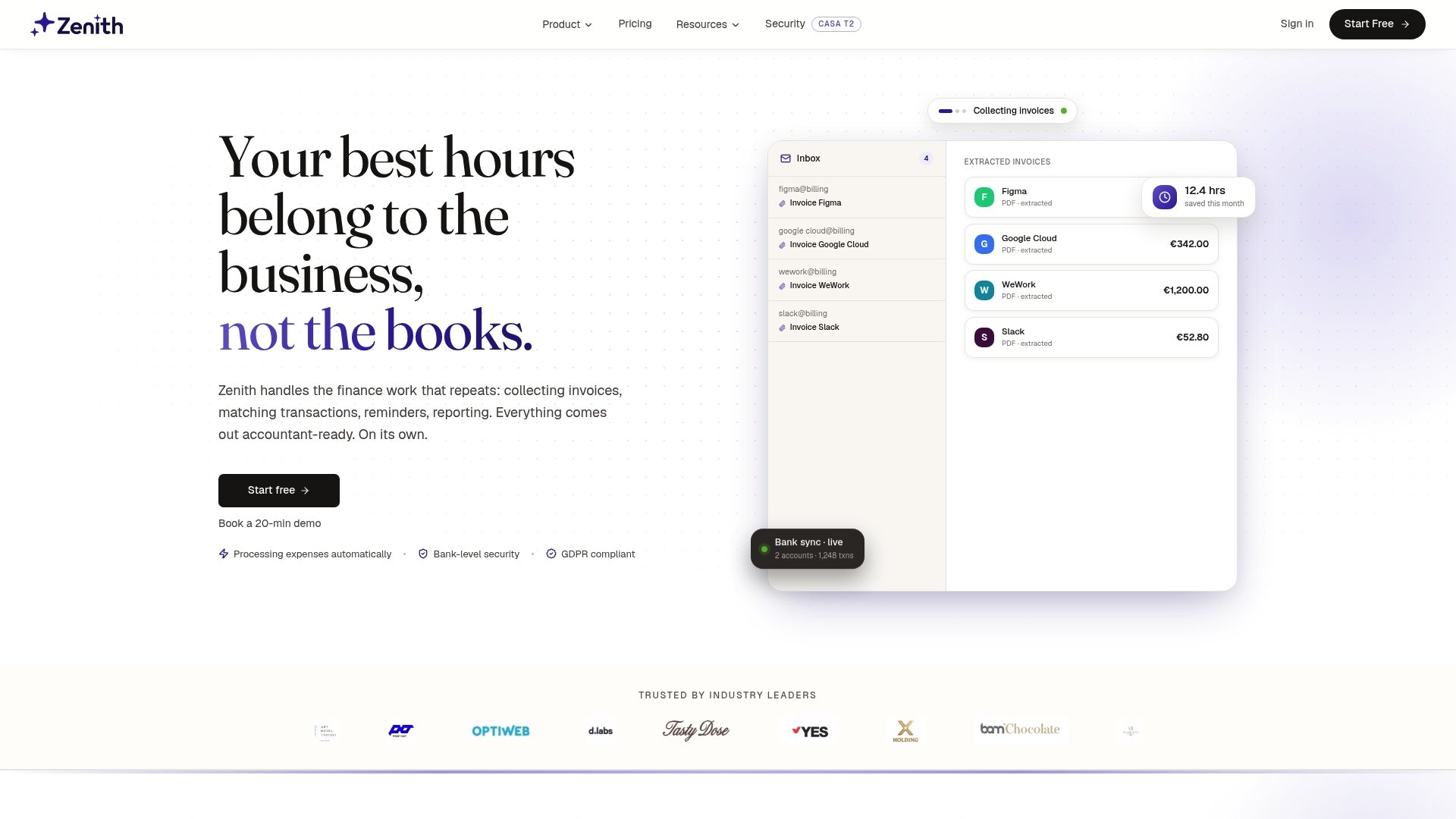
That means the clearing account you’d otherwise chase down manually stays reconciled automatically, with exceptions flagged for review rather than buried in a spreadsheet. If you’re closing books for more than a handful of payouts a month, it’s worth seeing what that looks like against your own Stripe account. Explore Zenith’s solutions and start a trial to see your first payout reconciled automatically.
Sources
- Payout reconciliation report
- How to reconcile Stripe payouts in Xero when fees and refunds don’t match