


Yes. Supplier invoices sitting in Google Drive can be automatically captured, OCR-extracted and routed into accounts payable automation, using a Drive trigger, an invoice extraction engine and a set of validation rules. The architecture is straightforward: a new file in Drive fires an event, an extractor reads the invoice and returns structured, confidence-scored fields, and a review queue catches anything uncertain before it hits your ledger. Done properly, this replaces manual keying with an audit trail built from Drive links and extraction metadata.
TL;DR:
- A Drive folder trigger combined with OCR and validation rules can automate invoice data extraction, reducing manual entry and providing an audit trail.
- Spatial coordinates and multiple detection methods are essential for accurate field mapping, especially for vendor-specific invoice layouts.
- Setting conservative confidence thresholds for high-risk fields and applying cross-field checks like duplication detection minimizes payment errors.
- Limiting folder access to specific user roles and regularly reviewing permissions helps protect sensitive invoice data stored on Google Drive.
- Starting with a small supplier set and tracking exception rates over a few weeks allows tuning the system for reliable, scalable automation.
How does invoice OCR extraction actually work?
A Drive folder is only the front door. What happens after a file lands there determines whether you get clean structured data or a mess that needs re-keying anyway.
The pipeline runs in stages. First, ingestion: you either create a dedicated Drive folder and poll it, or use the Drive API with webhooks so a new PDF triggers processing within seconds rather than during a nightly batch. Google Cloud’s own Document AI case study describes exactly this pattern at FibroGen: a Drive/Cloud Storage bucket feeding Cloud Functions that call the Invoice Parser, with results pushed into SAP via an integration layer.
Second, OCR with spatial coordinates. This is the part most people underestimate. Reading the text on an invoice is the easy bit; knowing that the number “1,240.00” sits in the “Total Due” box rather than a line item or a bank reference number requires positional data, not just character recognition. Production-grade systems record where on the page each value was found, which is how they distinguish a subtotal from a total when both are formatted identically.
Third, vendor and format identification. No two suppliers lay out invoices the same way, so a serious extraction engine needs multiple methods, template matching for known vendors, and layout inference for new ones, according to IntellSolution’s technical breakdown of how this actually works.
The output should be structured JSON: field values, a confidence score per field, which extraction method produced it, and the source coordinates. That last part is what makes an audit possible six months later.
- Ingestion via Drive folder or webhook trigger
- OCR with spatial coordinates for accurate field mapping
- Vendor/format detection using multiple extraction methods
- Structured output with per-field confidence and provenance
How do you set up a Drive to AP automation workflow?
You do not need a six-month IT project to pilot this. A working version can be running inside an afternoon if you keep the scope tight.
- Create a dedicated “Invoices Drop” folder in Drive. Agree a filename convention (vendor, date, invoice number) so humans can still find things manually if the automation ever misfires. Consistent file structure also makes line-item auditing easier later, a point covered well in this guidance on invoice billing transparency.
- Add a trigger. Use the Drive API, a Workspace automation, or a connector that watches the folder and forwards new files to your extractor the moment they arrive.
- Connect an extraction engine. Whether that is Zenith or Google Cloud’s Document AI, confirm it returns per-field confidence scores and extraction provenance, not just a flat text dump.
- Log outputs to a ledger. A Workspace Studio build demonstrates this well: Drive trigger, extraction step, results logged straight to a Google Sheets ledger, with decision nodes routing anything uncertain to a review queue.
- Map fields to your accounting system. Attach the original Drive file link to every journal entry so any figure can be traced back to source in seconds.
Pro Tip: Pilot with five to ten suppliers for two to four weeks before rolling out wider. Track your exception rate weekly. Most teams find it drops sharply once they have tuned templates for their three or four highest-volume vendors, because those account for the bulk of invoice volume anyway.
Manual extraction on a complex invoice can eat 20 to 30 minutes per document once you include chasing missing details and correcting entry errors. A pilot on even a small supplier set makes that cost visible fast.
What confidence threshold should trigger manual review?
Nobody should be aiming for 100% automation on day one. Aim for automating the easy, high-confidence cases first and building trust in the exceptions queue before expanding scope.
Field-level confidence scores are what make this workable. Rather than accepting or rejecting an entire invoice, route individual fields: a vendor name at 98% confidence can post automatically, while a tax amount at 71% confidence gets flagged for a human to check. Fields like total due, tax amount and vendor identity typically warrant a higher bar than line-item descriptions, because errors there are the ones that cause payment disputes.
Advanced OCR can reach high-90s accuracy on clean digital PDFs, but accuracy drops meaningfully on scanned or photographed invoices. That gap alone justifies keeping a human-in-the-loop step rather than trusting extraction blindly from the start.
Beyond confidence scores, run cross-field checks:
- Does the total equal the sum of line items plus tax?
- Does the tax amount match the expected rate for that vendor’s jurisdiction?
- Has this exact invoice number from this vendor already been paid?
That last check, duplicate detection, prevents one of the most expensive and hardest-to-spot errors in AP: paying the same invoice twice because it arrived by email and was also uploaded to Drive. Keep every field’s confidence score, extraction method and source coordinates stored alongside the value, so a queried figure can be traced back to the exact spot on the original PDF.
How do you map extracted invoice data to your accounting system?
Extraction is only useful if the output lands somewhere your bookkeeper or accountant can actually use. That means a consistent field structure, whether the destination is Xero, QuickBooks, an ERP, or a plain Google Sheets ledger for smaller operations.
The fields that matter for almost every reconciliation workflow:
- Vendor name and tax ID (where applicable)
- Invoice number and invoice date
- Due date and currency
- Subtotal, tax amount, and total
- Line items with individual amounts
- A direct link to the source file in Drive
Alongside those values, carry the extraction metadata: confidence score, extraction method, and coordinates. This looks like overkill until the first time a supplier disputes a figure and you need to prove where it came from in under a minute.
| Column | Purpose |
|---|---|
| Invoice ID | Unique reference for matching to payments |
| Vendor | Supplier name, standardised |
| Total (incl. tax) | Value to reconcile against bank data |
| Confidence score | Flags rows needing manual review |
| Drive link | Source document for audit |
| Payment status | Updated once matched to a bank transaction |
Once invoices sit in that structure, reconciliation against real bank movements is the next step. A live bank-to-Sheets sync lets you match a paid invoice row against the actual outgoing transaction automatically, closing the loop between what you owe and what has actually left the account.
What does this look like in practice with Zenith?
Zenith supports Drive ingestion directly: invoices dropped into a watched folder get pulled into AI-powered OCR extraction with line-item detail, the same field-level confidence and provenance approach described above, plus automatic duplicate detection and export to accounting software.
The realistic outcome from a pilot is not “zero manual entry from week one.” It is a steep drop in keying time within the first fortnight as templates settle, followed by faster month-end close because the ledger updates continuously rather than in a scramble at month-end. Fewer duplicate payments follow naturally once cross-invoice checking runs automatically rather than depending on someone remembering they already paid a supplier.
For a hands-on look at how this works with actual documents, Zenith’s practical Drive invoice build walks through the setup, and the invoice OCR test page lets you run a sample invoice through extraction before committing to anything.
Is it safe to store supplier invoices on Google Drive?
Google Drive encrypts data in transit and at rest, which covers the baseline most finance teams need. The real risk is not Google’s infrastructure. It is how loosely permissions get managed once a folder has been shared with “anyone with the link” to save five minutes during onboarding.
Treat an invoices folder the way you would treat a filing cabinet with supplier bank details in it, because that is effectively what it is. A single invoice can carry a vendor’s bank account number, tax ID, and full billing history. Restrict the folder to named individuals rather than domain-wide sharing, and review who has edit access at least quarterly.
Two practical habits reduce exposure significantly. First, separate the “drop” folder, where anyone in AP can add files, from the “processed” folder, which should be read-only for most users once extraction has run. Second, avoid storing invoices with sensitive personal data (director’s home address on a sole-trader invoice, for instance) in a general shared drive without restricted access, since Drive’s sharing settings are only as strong as the discipline applied to them.
If your extraction tool integrates via a read-only connection rather than requesting full edit rights to your Drive, that is one less thing that can go wrong if the tool itself is ever compromised.
What happens if Google Drive goes down or a file is deleted?
Google Drive’s own version history and trash recovery cover accidental deletion for up to 30 days in most Workspace configurations, but that is not a backup strategy on its own. It protects against a fat-fingered delete. It does not protect against an account being compromised and a bad actor purging a shared drive deliberately.
A workable backup approach for invoice data has three layers. First, the original PDF stays in Drive as the source of truth, with version history enabled on the shared drive. Second, extracted structured data (the fields, not just the image) lives somewhere independent of Drive, a Sheets ledger, a database, or your accounting system directly, so that even total loss of the Drive folder does not mean losing the numbers, only the source images. Third, run a periodic export of the Drive folder itself to a separate storage location, weekly is reasonable for most SMB invoice volumes, so you have an offline copy outside Google’s ecosystem entirely.
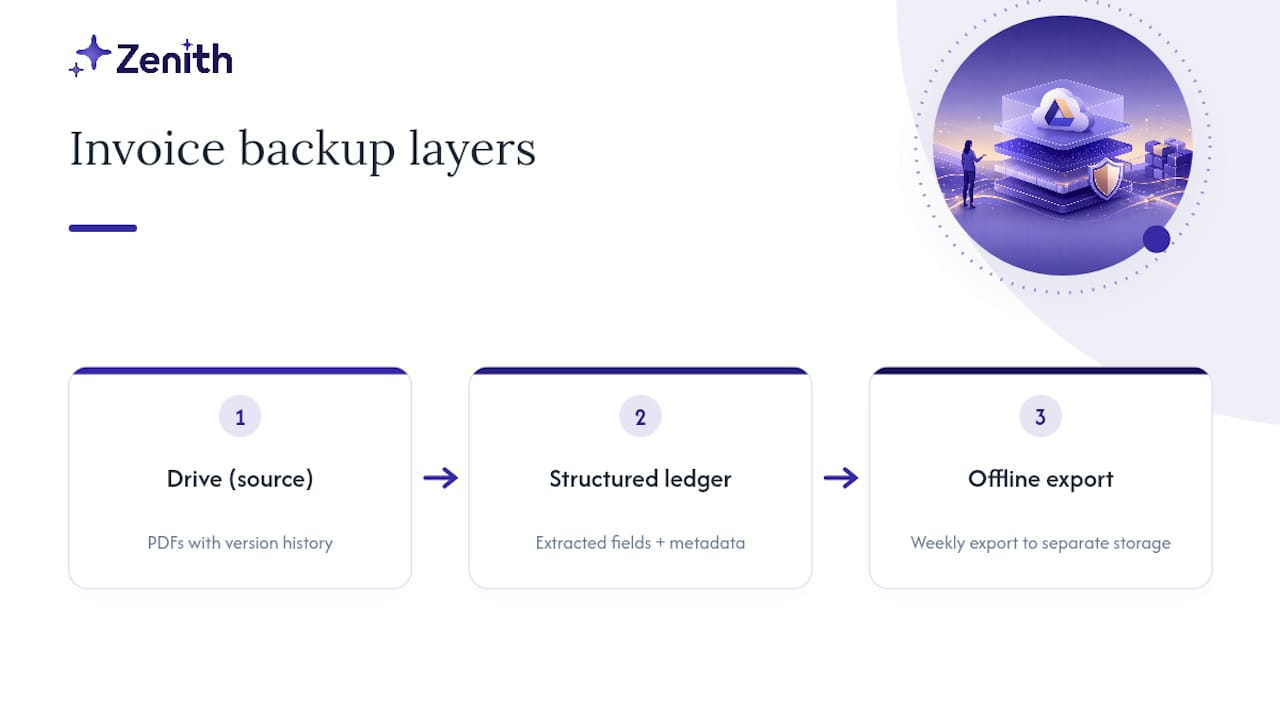
The extraction metadata approach described earlier pays off again here: if you have logged confidence scores, coordinates and values for every invoice in a separate ledger, losing the original Drive file is inconvenient but not catastrophic, because the numbers your accounts depend on already exist elsewhere.
How do you get notified when invoice processing needs attention?
A pipeline that runs silently is a pipeline nobody trusts. The moment something goes wrong, whether that is a supplier invoice failing extraction or a duplicate being flagged, someone needs to know within minutes, not at month-end when the numbers do not reconcile.
Build notifications around exceptions, not successes. A well-tuned pipeline should be quiet most of the time; alert fatigue from notifying on every successful extraction just trains people to ignore the channel. The decision-node pattern from the Workspace Studio flow mentioned earlier applies directly here: route low-confidence extractions, potential duplicates, and invoices missing required fields to a Slack channel, an email digest, or a review dashboard, while everything else posts through without interruption.
Three alert types cover most of what an AP team actually needs:
- Review-needed alerts, triggered when a field confidence score falls below your threshold.
- Duplicate warnings, triggered when invoice number and vendor match an existing record.
- Due-date reminders, triggered a set number of days before payment terms expire, pulled directly from the extracted due date field.
Keep alert routing separate from the ledger itself. If notifications are hardcoded into the same automation that posts entries, a broken alert can silently break processing too, which defeats the purpose of having alerts at all.
Who should have access to your invoice Drive folder?
Access control on a shared invoices folder tends to drift over time. Someone joins the finance team, gets added to the folder, leaves eight months later, and still has edit rights because nobody ran a review. That drift is where most invoice-related access problems actually originate, not from a dramatic breach.
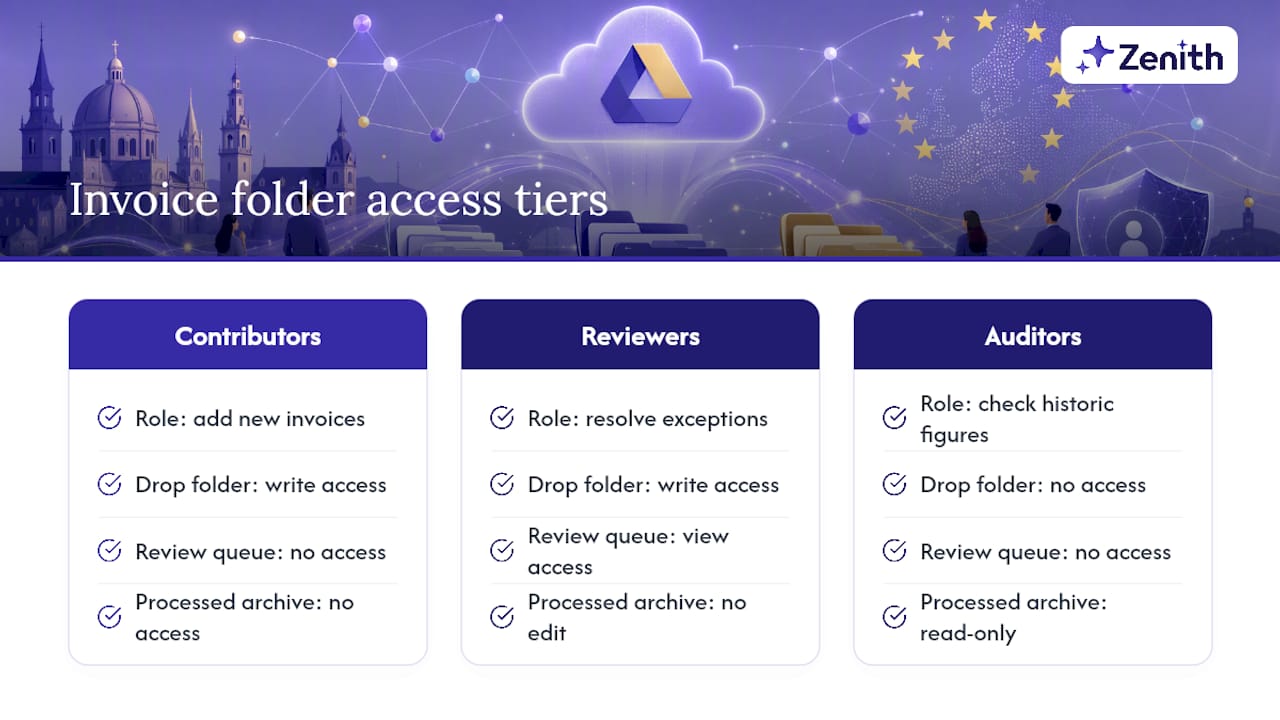
Set up three tiers of access rather than one flat “shared with finance” group. Contributors, the people or systems allowed to add new invoices, need write access only to the drop folder. Reviewers, the people who resolve exceptions flagged by confidence scoring, need access to both the drop folder and a review queue view, but do not need to alter processed records. Auditors, anyone checking historic figures for a specific journal entry, need read-only access to the processed archive and nothing else.
Google Workspace’s shared drive permissions support this tiering natively through group-based sharing rather than individual invitations, which matters when someone leaves. Removing one person from a group is safer than trying to remember every individual folder they were separately added to.
Run an access review on a fixed schedule, quarterly is a sensible minimum for most SMBs, and treat any service account or integration with Drive access the same way you would treat a person: check what scope it actually needs and revoke anything broader than that. A read-only PSD2-style connection model, where the integration can see data but cannot alter or delete it, is the safer default whenever a third-party tool is involved.
Why confidence thresholds matter more than perfect accuracy
Most advice on invoice automation focuses on accuracy percentages, chasing the highest possible OCR score as if that were the whole problem. It is not. A system boasting 98% field accuracy that gives you no way to identify which 2% failed is more dangerous than a system at 92% accuracy with reliable confidence scoring, because the second system tells you exactly where to look.
The conventional advice to “automate everything, then fix errors as they surface” gets this backwards for finance specifically. Errors in AP are not like errors in a marketing spreadsheet. A wrongly posted total or a missed duplicate payment costs real money and takes real time to unwind. The sounder approach, incremental automation, starting with your highest-confidence, highest-volume suppliers and expanding the automated set only as templates prove reliable, is slower to reach full coverage but never puts money at risk in the meantime.
What should come first is not choosing a vendor or comparing extraction accuracy claims. It is deciding, in writing, which fields on which invoice types can never post without a human eye, regardless of how confident the extraction claims to be. Get that governance right before you get the tooling right, because governance is what determines whether the tooling earns your trust.
— Gašper Anderle
Try Zenith’s Drive invoice capture on your own supplier files
Zenith’s invoice automation pulls files straight from a watched Google Drive folder, runs OCR extraction with line-item detail, flags duplicates automatically, and exports clean records to your accounting software, without you touching a keyboard for the routine cases.
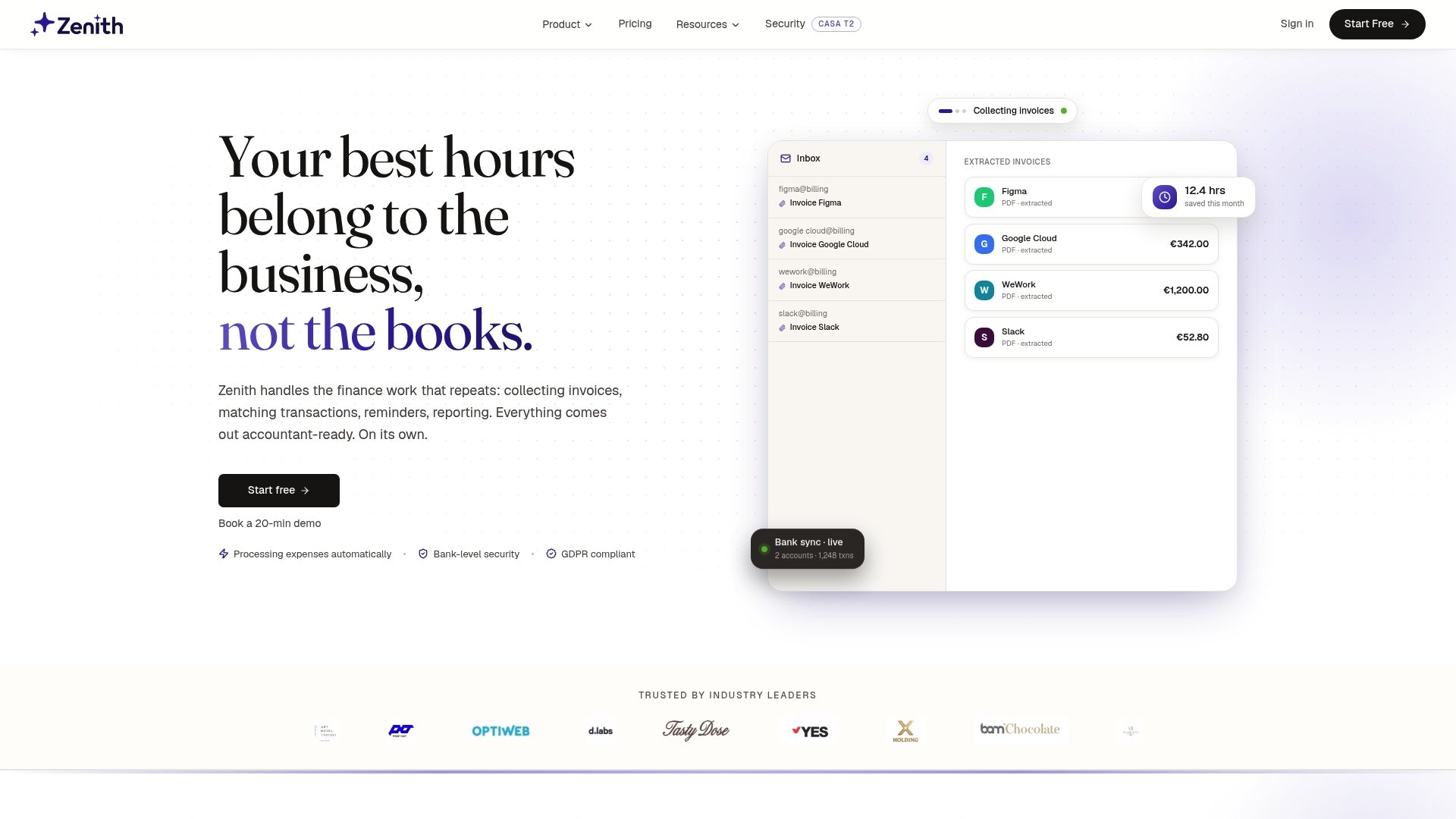
For finance teams also working with bank data, Zenith’s bank sync connects via a read-only PSD2 link to more than 2,400 banks across 30 European countries, delivering transaction data to Google Sheets, Claude via MCP, a REST API, or CSV, at €5 per account per month, with a 5-minute setup and a 30-day money-back guarantee. Full technical detail on what the connection can do lives in the Zenith documentation.
A sensible way to start: pick five to ten of your highest-volume suppliers, run their invoices through Drive capture for two to four weeks, and track your exception rate and time saved before deciding whether to scale further. Check current plans or go straight to the invoices-to-Drive solution page to set up your first folder today.
Sources
Google Cloud’s Document AI case study and the Workspace Studio build walkthrough both show working Drive-to-ledger pipelines in more technical depth than covered here, useful if you are briefing a developer directly.