

30–60 Day Supplier Notice: EU Invoice Inbox Setup That Stops Duplicates

The fastest, lowest-risk invoice inbox setup is a dedicated AP shared mailbox with IT-configured auto-forwarding to a single invoice-capture address. Skip manual downloads and personal inboxes entirely. Restrict admin access to a small group, define intake categories with owners and SLAs, and cap accepted file types before the first supplier email lands. Everything else in this guide fills in the detail.
TL;DR:
- Using a dedicated shared mailbox with auto-forwarding to a vendor capture address ensures a low-risk, scalable invoice intake process with audit trail retention.
- Enforce strict file type, size limits, and single, searchable PDFs to reduce ingestion failures caused by unsupported formats or malformed headers.
- Run a comprehensive pre-launch test for invoice ingestion, duplicate detection, and field extraction, and verify only one delivery path per supplier is active.
- Restrict mailbox admin access tightly, log all changes, and separate data entry from approval rights to prevent fraud and unauthorized modifications.
- Notify suppliers in advance, specify acceptable formats and size limits, and confirm compliance with a small sample check before going live.
Table of Contents
- How do you set up an invoice inbox?
- Designing the intake workflow: categories, owners and SLAs
- What file types and sizes should you accept?
- How do you verify the setup is working?
- Who should have access to the AP inbox?
- What should you tell suppliers before rollout?
- Why do invoices fail or duplicate after setup?
- What a vendor-led implementation actually looks like
- Which inbox configuration would I choose for a mid-size AP team?
- Try Zenith’s invoice capture and bank data tools
- Sources
- FAQ
How do you set up an invoice inbox?
Start with the mailbox itself, not the automation layer bolted onto it. A shared mailbox at ap@yourdomain.com or invoices@yourdomain.com gives you one address that outlives staff turnover and one place to enforce access rules. Never route supplier invoices through a personal inbox: when that person leaves, you lose the audit trail with them.
You have three delivery-path options, and only one should be live at any time per supplier:
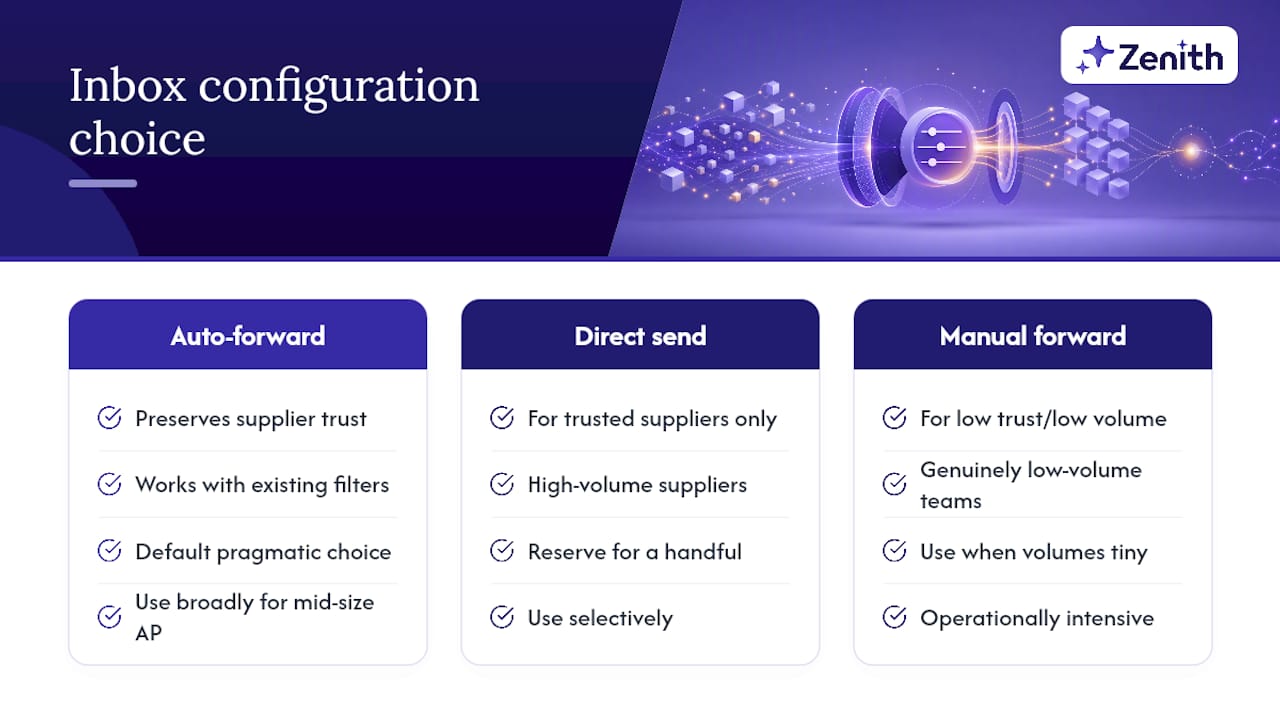
- Auto-forwarding (recommended default): Set your branded
ap@company.comto auto-forward every message to the automation vendor’s capture address. Suppliers keep emailing the address they know; the forwarding rule does the work invisibly. It preserves your existing spam filters and keeps supplier relationships intact. - Direct vendor sending: Ask a small, trusted set of high-volume suppliers to email the vendor’s capture address directly. Fewer moving parts, but you lose the branded address and need tighter supplier onboarding.
- Manual forwarding: Someone in the team forwards invoices by hand. Fine for a handful of invoices a month; unworkable past that, and it is the option most likely to create duplicate submissions.
For forwarding setup, Microsoft 365 and Google Workspace both require admin-level tenant access. In Outlook on the web, Microsoft’s own guidance walks through enabling automatic forwarding, and tenant administrators may need to approve external forwarding separately depending on your organisation’s mail flow rules. Google Workspace follows a similar pattern: enable forwarding at the mailbox level, then confirm it at the domain level if external forwarding is restricted.
Whichever path you choose, the recommended workflow is the same: identify the vendor capture address, create the forwarding rule, verify it via the confirmation email or token the vendor sends, then fire off a test attachment before telling a single supplier the setup is live. If you are connecting via IMAP rather than forwarding, expect the vendor to require domain verification and an explicit AP automation toggle before ingestion starts. For a full walkthrough of connecting a mailbox to OCR capture, see how to automate invoice processing from email.
Designing the intake workflow: categories, owners and SLAs
A mailbox with folders is not a workflow. What turns it into one is a defined set of intake categories, named owners, and time limits attached to each stage. Skip this and invoices pile up until month-end panic finds them.
Six categories cover most AP inboxes: new invoices, statements, payment reminders, vendor setup requests, supplier queries, and exceptions (bad file, missing PO, mismatched VAT number). Each needs a status: new, reviewing, needs clarification, entered, exception, or routed.
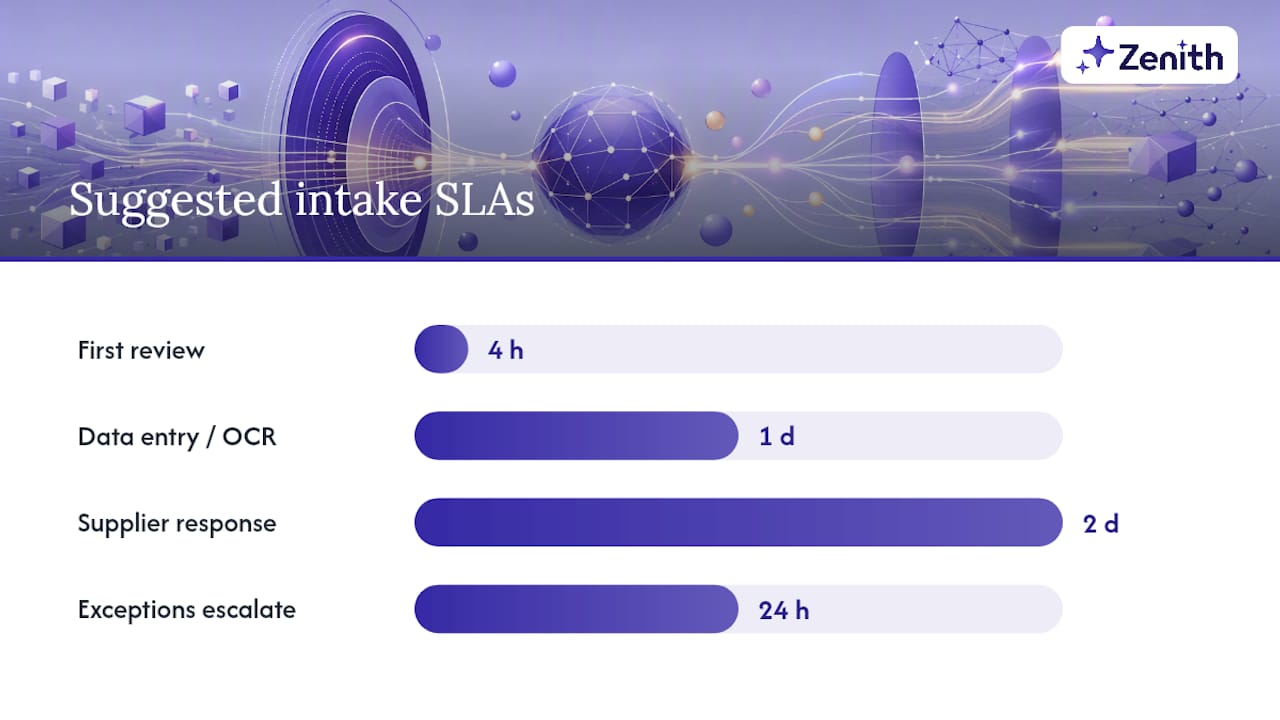
Suggested SLAs to enforce:
- First review within four business hours of arrival
- Data entry or OCR confirmation within one business day of a clean invoice
- Response to a supplier clarification request within two business days
- Exceptions escalated to a named owner within 24 hours
Duplicate checks and source-file traceability belong at this intake stage, not further down the process. Once you can prove a file’s origin and dedupe it on arrival, downstream approval becomes far less contentious. Zenith’s duplicate invoice detection approach works on exactly this principle: catch the double submission before it reaches a payment run.
Pro Tip: Log the source mailbox and forwarding path on every captured invoice, not just the sender address. When two delivery paths are accidentally left open for one supplier, this is the field that tells you which one to shut off.
What file types and sizes should you accept?
Ingestion failures are rarely about the invoice content. They are almost always about the file itself.
- Accept PDF, JPEG, and PNG as standard; reject anything else automatically rather than letting it sit unprocessed.
- Enforce a documented size limit per attachment and a maximum attachment count per email; publish both to suppliers so they know before they hit the wall.
- Watch for scanned invoices from older office printers. Some produce malformed MIME headers that delivery services silently reject, which looks like a missing invoice rather than a technical fault.
- Insist on single searchable PDFs rather than inline images embedded in the email body; multipage invoices or statements should arrive as one file, not five separate scans.
- Configure capture filters using subject-line patterns and sender allowlists to cut spam and misdirected mail before it reaches the queue.
How do you verify the setup is working?
Run this checklist before telling a single supplier the new address is live:
- Send a single-page PDF invoice and confirm it lands in the intake queue.
- Send a multipage PDF and an image attachment (JPEG or PNG) to confirm both formats ingest cleanly.
- Send the same invoice twice deliberately and confirm duplicate detection flags the second copy rather than creating a second entry.
- Check field extraction line by line: invoice number, supplier name, invoice date, due date, total, and VAT amount all mapped to the right field.
- Confirm only one delivery path is active per test vendor, then run one invoice through full approval and archival, recording the timestamp at each stage against your SLA targets.
Start narrow. A pilot with one mailbox and a handful of high-volume suppliers stabilises extraction accuracy before you widen the net to every vendor on your ledger.
Who should have access to the AP inbox?
Restrict mailbox admin rights and forwarding-rule changes to a small, named group. Every additional person who can alter a forwarding rule is another point where a fraudulent redirect could go unnoticed for weeks.
- Separate data-entry access from approval rights so no single person can both key an invoice and approve its payment.
- Keep an auditable log of every forwarding-rule change, access grant, and verification test, with dates and the name of whoever made the change.
- Use sender allowlists and filter rules to cut impersonation risk, and monitor for new forwarding rules that nobody authorised.
- Consider a layered permissions model rather than blanket full access; SendSync’s guidance on shared inbox permissions covers practical setups for exactly this.
Pro Tip: Review the list of people with forwarding-rule access every quarter. It grows quietly with every new hire granted “temporary” access that never gets revoked.
What should you tell suppliers before rollout?
Give suppliers 30 to 60 days’ notice before the new address goes live, and ask for these fields on every invoice: invoice number, invoice date, supplier legal name, VAT or tax ID, and PO number where one applies.
- State clearly that invoices must go to one address only. Suppliers still cc’ing an old personal inbox is the single biggest cause of duplicate entries.
- Specify accepted file types and size limits in the same notice so suppliers do not have to guess.
- Run a small-sample compliance check two weeks after go-live: pull ten recent invoices per major supplier and confirm they followed the format.
- Follow up personally with your top ten suppliers by volume. A five-minute call prevents months of malformed invoices from a supplier who never read the email.
For ready-to-adapt wording, see where to send supplier invoices.
Why do invoices fail or duplicate after setup?
Five causes account for nearly every ingestion failure: an unsupported file type, an oversized attachment, a forwarding rule stuck awaiting verification, malformed headers from an older scanner, or two active delivery paths for the same supplier.
- Check the forwarding-rule verification status first. An unconfirmed token is the most common silent failure.
- Pull the capture ingestion log and the duplicate-detection report to see exactly where the file dropped.
- Pause whichever delivery path is redundant, and ask the supplier to resend as a single PDF if the original was a scanned image with bad headers.
- Escalate to IT or vendor support only once you have the message headers and a timestamp in hand. That evidence turns a two-day ticket into a same-day fix.
What a vendor-led implementation actually looks like
A working setup pairs email and Google Drive capture with OCR extraction, duplicate detection, and bank-sync data in one place. Zenith reads invoices from your inbox and Drive folders, pulls line-item detail, flags duplicates automatically, and files originals to Drive with auto-naming. Detailed configuration templates and an OCR test page sit alongside the docs for hands-on setup.
Which inbox configuration would I choose for a mid-size AP team?
Auto-forwarding from a branded ap@ address to one capture address is the pragmatic default. It preserves supplier trust and existing filters. Reserve direct vendor sending for a handful of trusted high-volume suppliers, and manual forwarding for genuinely low-volume teams. The one rule I never break: never leave two delivery paths open for the same vendor at once.
Try Zenith’s invoice capture and bank data tools
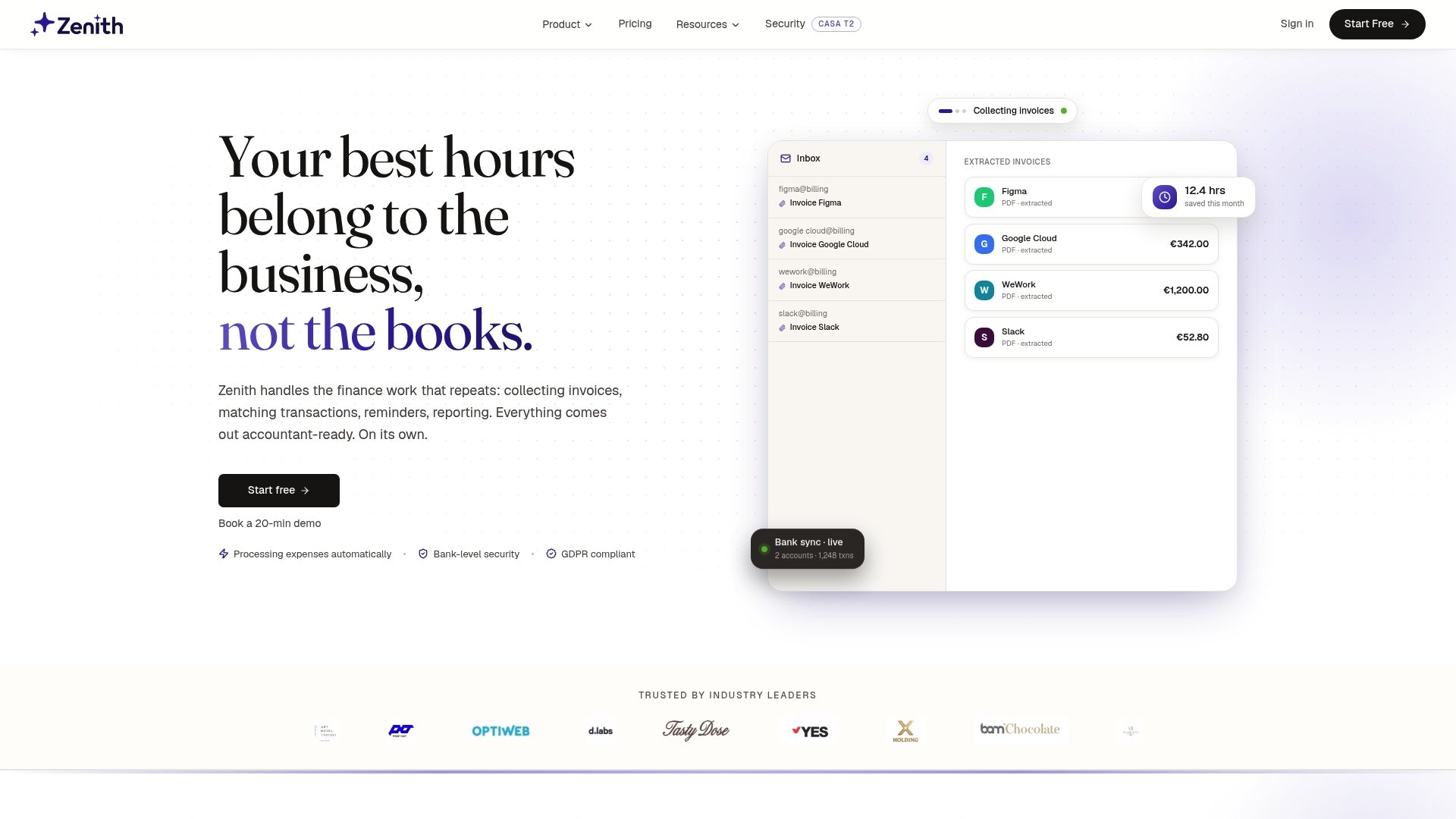
A comprehensive solution can give you one place to solve both halves of this problem: invoice capture and the bank data that reconciles against it. Such systems read invoices straight from your inbox and Google Drive, extract line-item detail with AI/OCR, flag duplicates before they reach a payment run, and export clean records to your accounting software.
On the bank side, Zenith’s Bank Data service connects over 2,400 banks across 30 European countries through a read-only PSD2 link, at €5 per account per month, with a 5-minute setup and a 30-day money-back guarantee. Data lands in Google Sheets, Claude via MCP, a REST API, or CSV, so your invoice queue and your bank feed sit in the same reconciliation view rather than two disconnected systems.
Run a test file through the OCR test page to see extraction accuracy on your own invoices, or check current pricing plans starting with the free and pay-as-you-go tier if you want to trial the capture workflow before committing to a paid plan.